Shift Types
Adding at least one working shift type is required. Groups are optional and can
be added later when several shifts share a rule. Keep IDs short, such as D,
E, and N.
Real scenario example
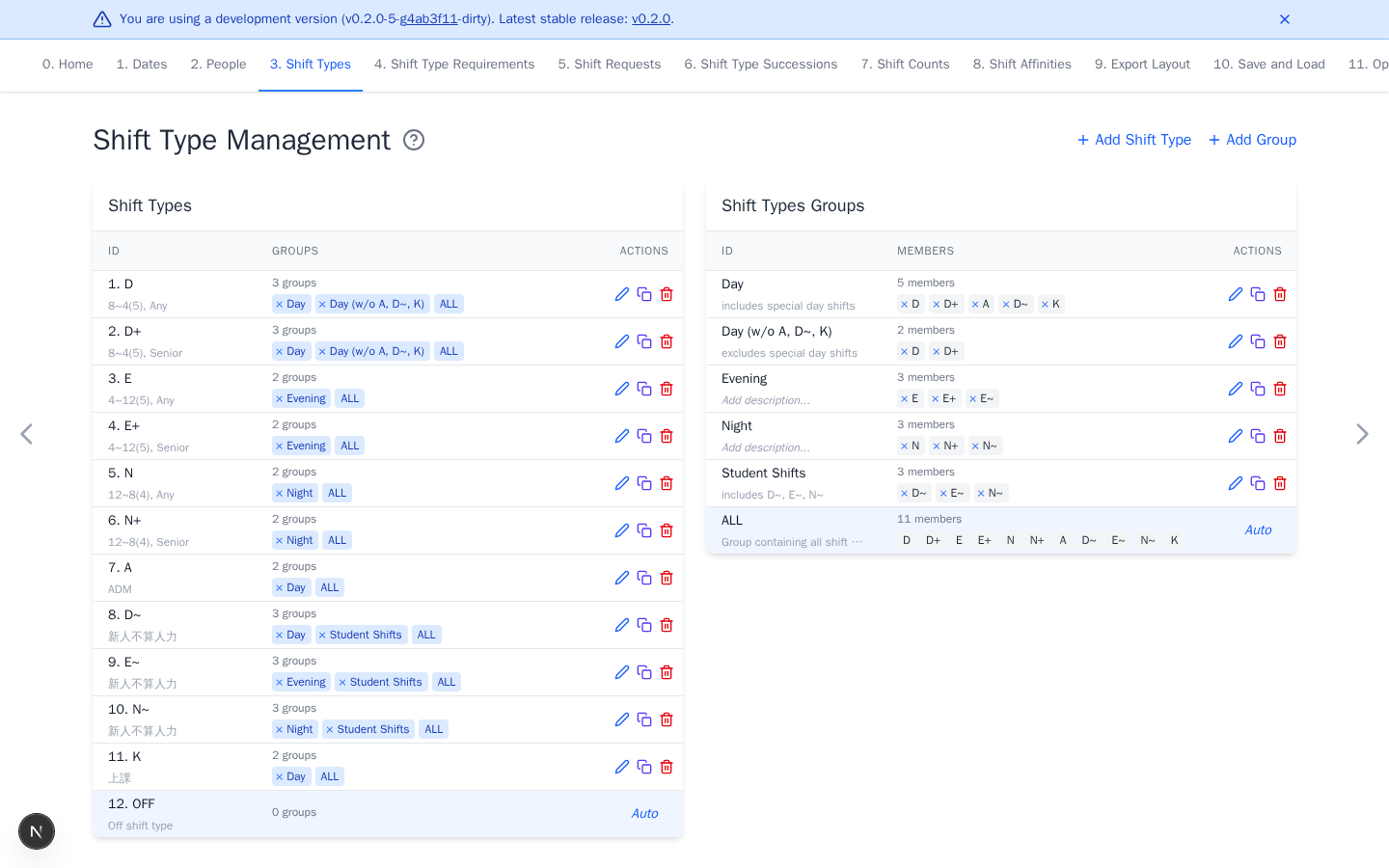
An anonymized ward uses day, evening, and night shifts with senior variants
such as D+. D~, E~, and N~ identify student shifts that do not count as
regular staffing. K represents required class attendance. The + and ~
symbols are only IDs. Staffing and eligibility rules give them their meaning.
The broad Day group includes daytime activities for succession rules, while
Day (w/o A, D~, K) contains only ordinary and senior Day shifts. The narrower
group is retained in the example but is not selected by a current rule.
Add working shifts
- Select Add Shift Type for each working shift you need.
- If editing a loaded schedule, remove working shifts your workplace does not use.
Optional: drag rows into the preferred workbook order.
OFF is the automatic no-work shift and should not be recreated. ALL is an
automatic group. Renaming or deleting a shift updates references throughout
preferences and export layout rules.
Add shift groups
A group makes later rules easier to target across several shift types. Skip groups when you are unsure. You can add them later, then select them in new or edited rules.
- Select Add Group.
- Enter a descriptive ID, such as
Day. - Select the member shift types, then select Add.
In a staffing requirement, selecting a group creates one aggregate total across its member shifts. Create separate requirements when every concrete shift needs its own staffing level.
Empty groups have no effect. Review group membership after deleting member shifts. Continue with Shift Type Requirements.