Build a Real Schedule
This guide explains both how to rebuild the bundled, anonymized 87-person
ward schedule for November 2025 in the web UI and why the ward chose its
groups, staffing levels, requests, and weights. The guide focuses on the
rationale behind each step, including the ward's
workload, staff qualifications, rest policies, and preference priorities. These
explanations help users and AI assistants adapt the schedule data to another
ward. The steps start from empty schedule data.
Save and Load → Download produces the same schedule data as the bundled
example (large-ward-with-87-people-2025-11.yaml). The exported YAML is not
byte-for-byte identical: the running app stamps appVersion and can write
requests or fields in a different order. See
Validate the result.
People are anonymized as P1 through P87. Most group descriptions keep the
original ward's mix of English and Chinese labels. The imported calendar groups
use the app's descriptions.
Input and output
The complete ward workflow starts with an uncompleted monthly schedule workbook containing dates, people, staffing requirements, and shift requests, with daily assignments not yet filled in. It may also contain staff roles and previous-month shifts. Each ward uses its own layout and notation, and may provide additional requirements as text.
This example starts with information already extracted from that source. It focuses on constructing the schedule data through the GUI and using it to generate an optimized schedule. Extracting an arbitrary ward workbook and converting the result into the ward's expected workbook are outside the walkthrough's scope. The following summary explains how the example's inputs and outputs relate to those tasks.
- Dates, roles, and staffing: Read the scheduling period, staff qualifications,
monthly primary shifts, and required daily counts from the workbook and any
accompanying instructions. If a cell color identifies a staff role, ask the
person preparing the schedule which role that color denotes before assigning
qualifications.
If a heading says “Day,” ask whether it identifies nurses whose monthly
primary shift is Day or a staffing count for daily Day assignments.
Enter the confirmed values and the ward's rules through the GUI.
reference.yamlsupplies the values for this example. - People: Copy the roster column, remove its heading and blank rows, and
save one person per line as text or a single-column CSV without a header.
people.txtemulates this extracted roster with anonymized IDsP1–P87. - Previous-shift history: Convert the preceding shifts into
person,shift,repetitionrows, as inpeople-history.csv. Depending on the source notation, regular-expression replacement may handle this conversion without custom code. For example, if4Nmeans four consecutive Night shifts forP8, convert it toP8,N,4. IfOmeansOFF, convert4OtoP8,OFF,4. Editors such as Notepad++ and VS Code support these replacements. The suitable method depends on the workbook's notation and the user's tools. - Shift requests: Extract the person-by-date requests and separate them
by strength. Excel text search, formatting search, or filters may help.
For example, if red and black
1cells both requestOFFbut carry different strengths, search by font color to separate them. Confirm what each mark and color means with the person preparing the schedule. Save each strength in a separate CSV, preserving person rows and date columns and leaving other cells blank, so each GUI upload can apply its own weight. The supplied strong and moderate request CSVs emulate this extraction. The app does not interpret Excel colors or ward shorthand. - Schedule data and optimized schedule: The GUI exports the schedule data
as YAML. The optimizer uses it to produce daily assignments. In the real
workflow, these assignments must then be converted back to the ward's
workbook layout and shift notation. For example, if the ward labels
ordinary, senior, and student Day assignments as
D, mapD,D+, andD~toD. The solver distinguishes these shift types to enforce qualifications and staffing counts. This final conversion is outside the tutorial's scope and is skipped here. The tutorial ends when the optimized schedule satisfies the hard constraints and the person preparing the schedule considers its staffing, requests, and distribution of work and rest acceptable.
Terminology
These terms follow the order of the GUI tabs:
- Date range: The period for which daily assignments are generated.
- Date group: A named set of dates for applying shared rules, such as workday staffing requirements or counting days off on freedays.
- People: The individuals who receive daily assignments.
- People group: A named set of people for applying shared qualifications or preferences. A person may belong to several groups.
- Shift type: A category of daily assignment, such as Day work or a day off.
- Shift-type group: A named set of shift types for applying shared rules, such as rest requirements after daytime work.
- Shift-type requirement: Required and optional preferred staffing counts for selected shifts and dates, with a list of people qualified to fill them.
- People history: Daily shifts immediately before the date range, used to check rest and work sequences across the month boundary.
- Shift request: A rule requiring, forbidding, rewarding, or discouraging selected assignments for a person or people group on selected dates.
- Shift-type succession: A rule allowing, forbidding, rewarding, or penalizing a sequence of shifts, such as Evening followed by Day.
- Shift count: A rule on the number of selected assignments per person, such as a target number of days off.
- Shift affinity: A rule encouraging or discouraging selected people working selected shifts on the same date. It can express preferences for working together or separately. This example uses no affinity rules.
- Preference rule: The app's general term for scheduling constraints and weighted objectives, including staffing requirements, requests, successions, counts, and affinities. Some are mandatory. Others can be traded off during optimization.
Naming the schedule
These terms name the schedule by its state in the workflow:
- Schedule: The nurse roster in any state of completion.
- Empty schedule data: The schedule-data state right after New Schedule → Create empty schedule: dates, people, shift types, and history are unset, and only the built-in at-most-one-shift-per-day rule exists.
- Schedule data: The schedule's editable content, stored in the browser and saved as YAML: dates, people, shift types, histories, preference rules, and the export layout. It holds no daily assignments within the date range.
- Completed schedule: The schedule with daily assignments filled in for
every person and date, whether by the optimizer or by hand. A blank
OFFcell still counts as an assignment. The ward may adjust it further by hand before use. - Optimized schedule: The optimizer's output when it completes a schedule, downloaded as an XLSX workbook. It is one way to produce a completed schedule.
Ward conventions
These describe the ward's source information and monthly staffing practice, rather than items created on a GUI tab.
- Source materials: Everything a ward supplies, in whatever form: the uncompleted monthly schedule workbook, last month's completed schedule, natural-language staffing and fairness policies, and verbal instructions. When the source materials are complete, a person or an AI assistant can interpret them into schedule data.
- Uncompleted monthly schedule workbook: The ward's roster document before daily assignments are completed, usually an Excel workbook. It contains dates, people, staffing requirements, and shift requests, and may include staff roles and previous-month shifts. Its layout and notation vary by ward. Written instructions may supplement it.
- Monthly primary shift: Day, Evening, or Night designated as a nurse's primary shift category for the month. Daily assignments may differ to meet staffing needs or individual requests. For example, a nurse whose monthly primary shift is Night may work a Day shift when necessary.
- Shift transition buffer: The first few days of a month when a nurse
changes monthly primary shift. Working the current primary shift immediately
is preferred. When this is not possible, lower penalties allow continued
work on the previous primary shift while sleeping hours adjust. This example
uses November 1–3 (
Before 4).
Data files
The companion files in the build-a-real-schedule/ directory make the large,
repetitive parts of the schedule importable in one action instead of hundreds
of cell edits:
people.txt: the 87 person IDs.people-history.csv: previous-shift history for every person.shift-requests-strong.csv: concrete person-date requests at weight11b(408 cells).shift-requests-moderate.csv: concrete person-date requests at weight11m(90 cells).reference.yaml: the exact values, including descriptions, for the shift types, groups, and rules that the app does not bulk-import. Follow the guide's tab order and the listed order for shift types, groups, staffing requirements, successions, and counts. The app sorts shift requests and may write fields in a different order when it exports YAML.
The November 1–30 date range is entered on the Dates page in step 1. It is not imported from a file.
1. Start from empty and set the dates
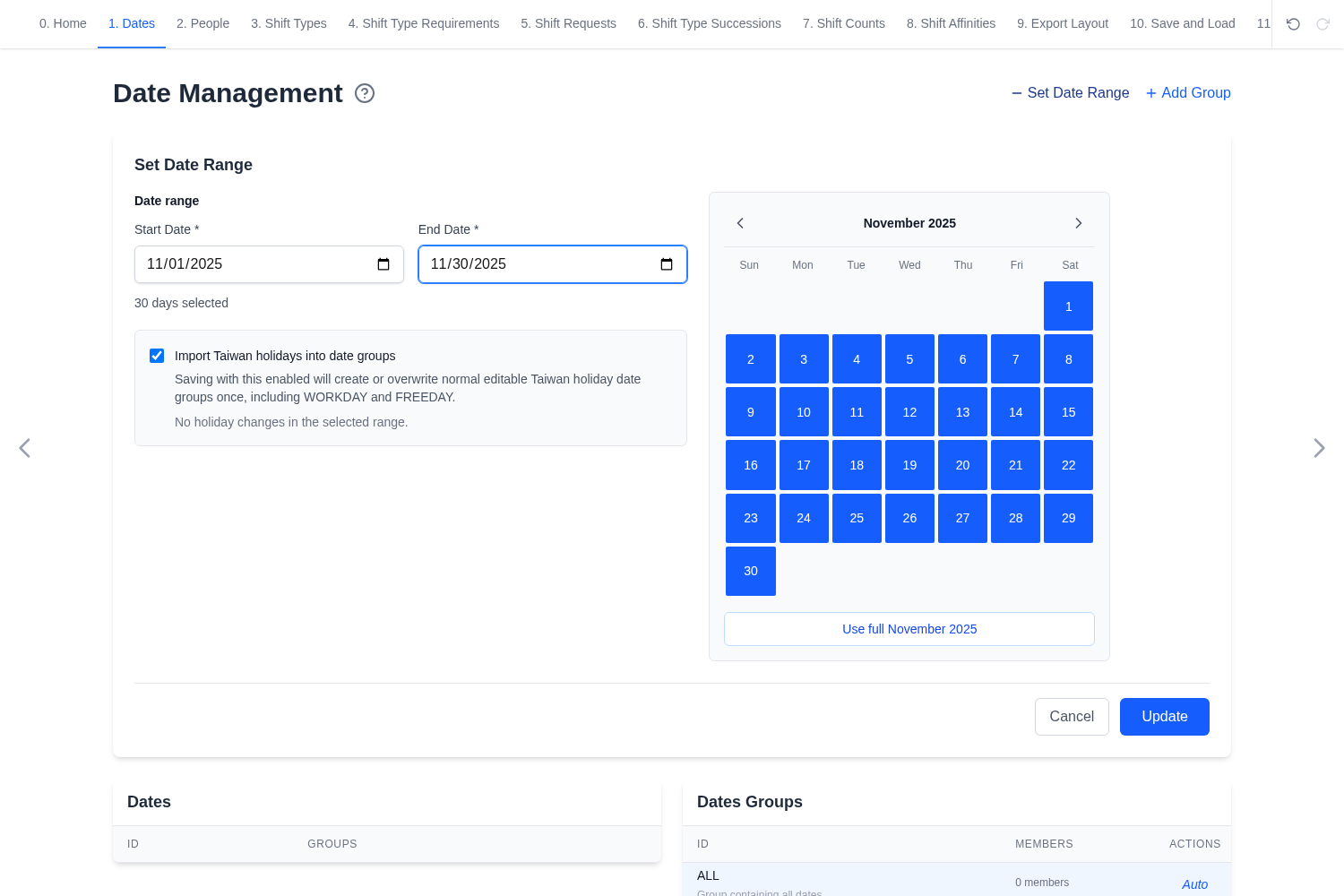
- On the app home page, select New Schedule, then Create empty schedule, and confirm. The new schedule already includes the default at most one shift per day preference.
- Open Dates and select Set Date Range.
- Set the start date to
2025-11-01and the end date to2025-11-30(30 days selected). - Keep Import Taiwan holidays into date groups checked. This creates
WORKDAYandFREEDAYwith the descriptions inreference.yaml. - Select Update.
The app creates one date item per day (01–30), the automatic groups
ALL, WEEKDAY, WEEKEND, and the weekday names, plus the imported Taiwan
WORKDAY and FREEDAY groups.
For another ward or month, the Taiwan calendar import can be a starting point.
Confirm the resulting workday and freeday groups against the ward's actual
calendar before using them in staffing or fairness rules.
2. Create the date groups
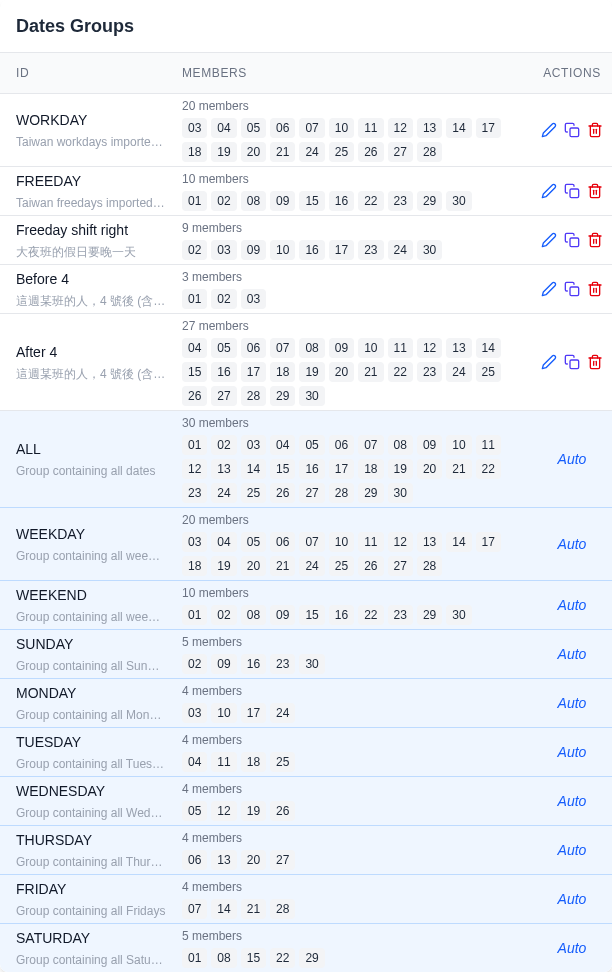
The November 1–30 range is already set. The Taiwan calendar import creates
WORKDAY and FREEDAY. Create the other three groups listed under
dateGroups in reference.yaml:
WORKDAY- Members: 20 workdays.
- Purpose: Imported by Import Taiwan holidays into date groups. Contains weekdays excluding Taiwan holidays, plus make-up workdays, within the selected date range. Use this group when staffing requirements differ between workdays and freedays.
- Creation: Created by Import Taiwan holidays into date groups.
FREEDAY- Members: 10 freedays.
- Purpose: Imported by Import Taiwan holidays into date groups. Contains weekends and Taiwan holidays, excluding make-up workdays, within the selected date range. Use this group for freeday staffing requirements and to balance days off on these dates.
- Creation: Created by Import Taiwan holidays into date groups.
-
Freeday shift right- Members: 9 days.
- Purpose: A Night nurse must prepare or sleep before the next midnight shift. Shifting freedays one date later accounts for this timing when evaluating weekend rest. Using this group to optimize Night nurses' weekend rest is an advanced quality-of-life addition outside the scope of this example. It may be useful when the ward requests this policy.
- Creation: Create manually with Add Group.
In this ward's notation,
N Fridaystarts at 00:00 on Friday and ends that morning. WithN Friday → OFF Saturday → OFF Sunday → N Monday, the nurse has much of Friday free but must sleep or prepare on Sunday evening for Monday at 00:00. The nurse has Friday daytime and Saturday available, but must prepare for work on Sunday evening.With
N Saturday → OFF Sunday → OFF Monday → N Tuesday, the nurse can use Saturday after work, enjoy Sunday, and prepare or sleep on Monday before the Tuesday midnight shift.Freeday shift rightcontains each calendar freeday shifted one date later. November 30 is included as the shifted date for November 29. December 1, the shifted date for November 30, is outside this schedule and is omitted. Optimizing Night nurses' rest with this shifted group is an advanced quality-of-life addition outside the scope of this example. It may be useful when the ward requests this rest policy, after the basic requirements produce a usable schedule.
When the monthly primary shift changes between months, the nurse needs time to adjust sleeping hours. A nurse whose monthly primary shift changes from Night in October to Day in November may continue working Night during the first few days of November.
Before 4- Members:
01,02,03. - Purpose: November 1–3 form a transition buffer when the monthly primary shift changes. Lower penalties allow a nurse to work the previous month's primary shift instead of the current month's primary shift while adjusting sleeping hours.
- Creation: Create manually with Add Group.
- Members:
After 4- Members:
04–30. - Purpose: From November 4, nurses are expected to work their current monthly primary shift. After the transition buffer, higher penalties are applied to shift types outside the nurse's monthly primary shift to discourage further changes in sleeping hours.
- Creation: Create manually with Add Group.
- Members:
Open Dates, select Add Group, enter the ID and description from
reference.yaml, switch the Members selector to List view, and check
the listed dates. This is easier for many members than the calendar view.
Hold the mouse button down and drag across adjacent checkboxes to select a run
of dates quickly. Check the selected members before saving.
Create Freeday shift right, Before 4, and After 4 in that order.
FREEDAY contains the ten weekends in this month. There is no special holiday
in this November range, but confirm that the imported calendar matches the
ward's actual free days before using it elsewhere.
3. Add the 87 people
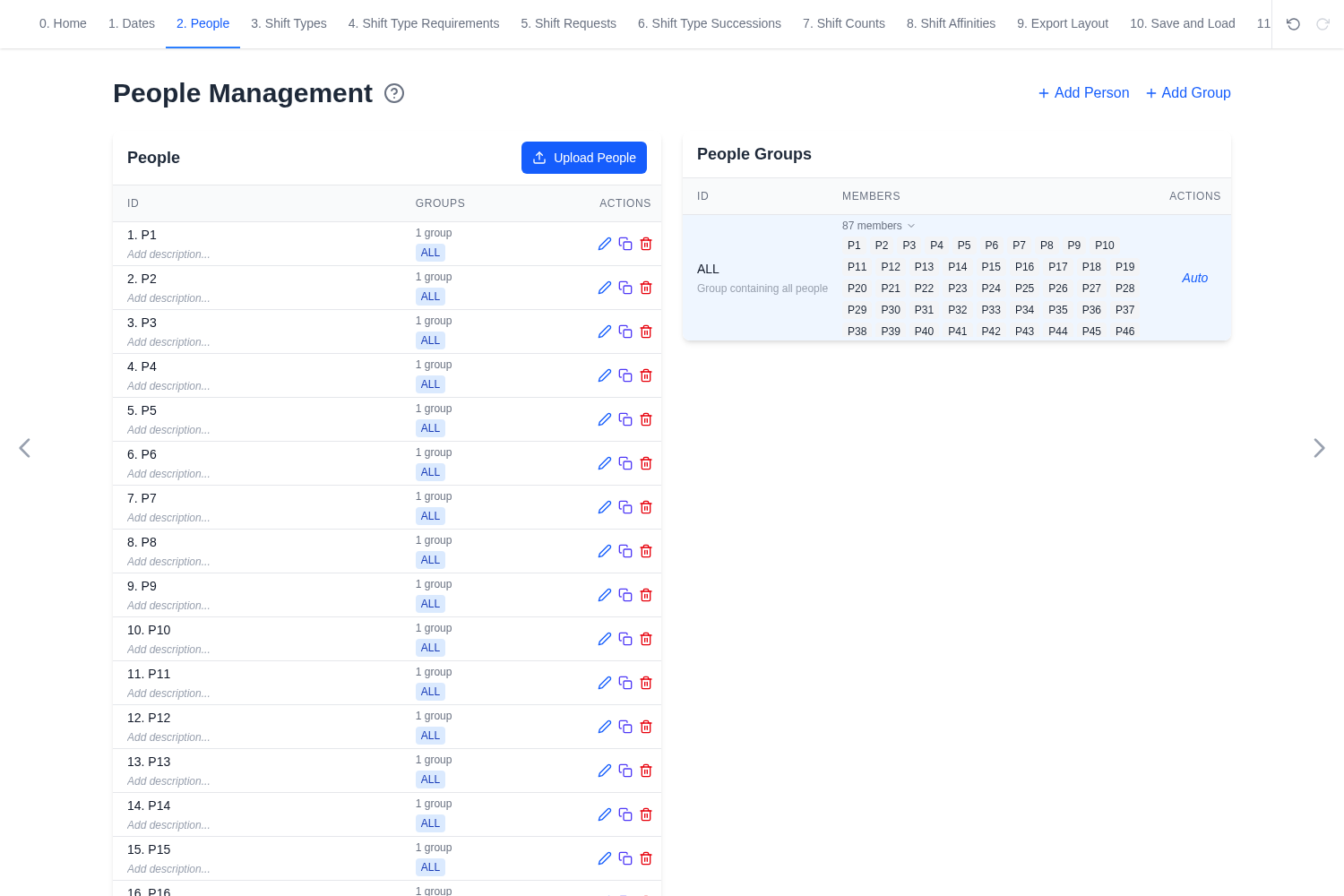
- Open People and select Upload People.
- Choose
people.txt. It has one person ID per line and no heading. Wait for the upload confirmation before leaving the page.
The upload adds all 87 people (P1–P87). Each appears under the automatic
ALL group.
4. Create the people groups
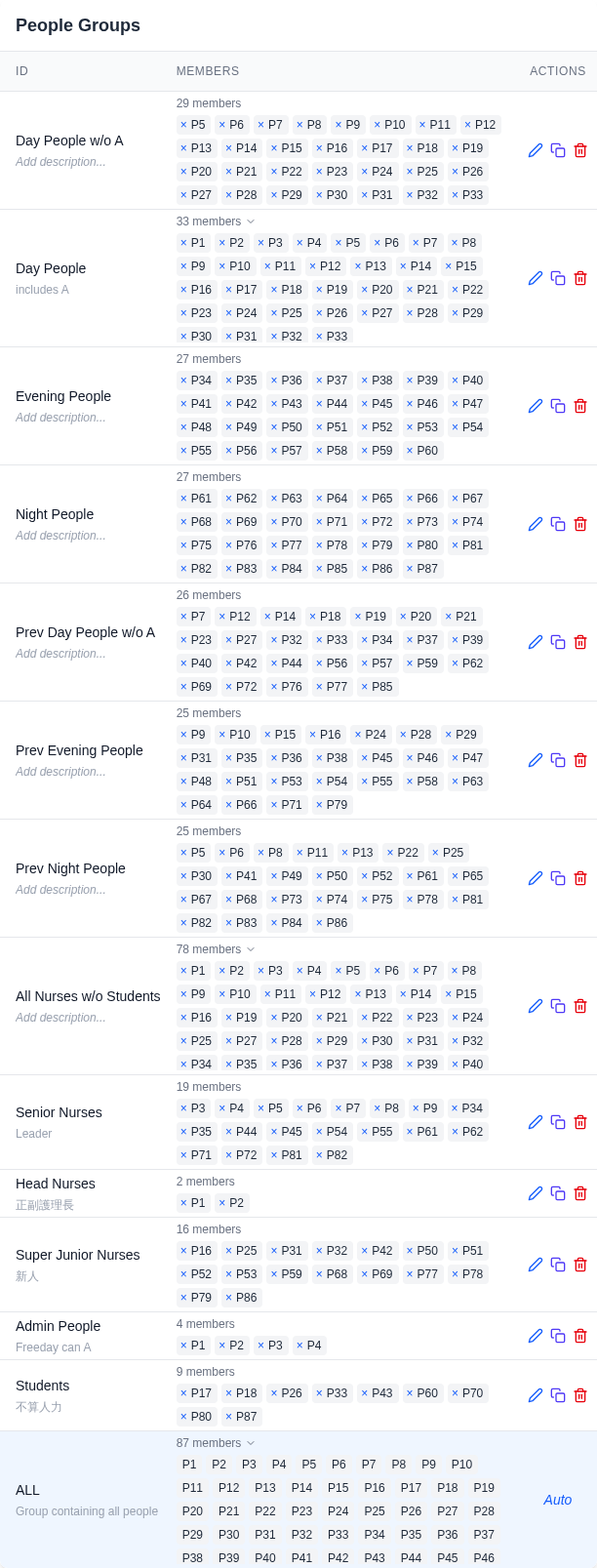
Create the 13 ward people groups listed under peopleGroups in
reference.yaml, in that order: Day People w/o A, Day People,
Evening People, Night People, Prev Day People w/o A, Prev Evening
People, Prev Night People, All Nurses w/o Students, Senior Nurses,
Head Nurses, Super Junior Nurses, Admin People, and Students.
Shift requests can select individual person IDs, such as P1, or people
groups, such as Night People. A staffing requirement's qualified-people
list can likewise select people or people groups.
Open People, select Add Group, enter the ID and description, and select
the member people from reference.yaml. Groups may overlap. The automatic
ALL group always holds everyone. In the checkbox list, hold the mouse button
down and drag across adjacent people to select a run quickly. Review the
result before saving, especially where groups overlap.
Day People w/o A- Purpose: Having Day as the monthly primary shift does not itself qualify a nurse for administrative work. Excluding administrative roles identifies the Day nurses who should not receive
A.
- Purpose: Having Day as the monthly primary shift does not itself qualify a nurse for administrative work. Excluding administrative roles identifies the Day nurses who should not receive
Day People,Evening People,Night People- Purpose: These groups contain nurses with Day, Evening, or Night as their current monthly primary shift. Preferences discourage shift types outside the monthly primary shift to reduce changes in sleeping hours. Their finite penalties still allow other assignments when needed for staffing or individual requests.
Day Peoplealso includes administrative staff.
- Purpose: These groups contain nurses with Day, Evening, or Night as their current monthly primary shift. Preferences discourage shift types outside the monthly primary shift to reduce changes in sleeping hours. Their finite penalties still allow other assignments when needed for staffing or individual requests.
Prev Day People w/o A,Prev Evening People,Prev Night People- Purpose: These groups record each nurse's previous monthly primary shift. As with
Freeday shift right, they support an advanced optimization refinement. Nurses should preferably work their current primary shift immediately. If staffing or requests prevent this during November 1–3, the previous-month primary-shift rules slightly favor continuing the previous shift over another non-primary shift. For example, a nurse changing from Night to Day should work Day when possible. Otherwise, these rules favor Night over Evening. This allows flexibility without requiring a delayed transition.
- Purpose: These groups record each nurse's previous monthly primary shift. As with
All Nurses w/o Students- Purpose: Students are learning alongside nurses and are not counted toward the nurse workforce needed for daily staffing. This group selects qualified nurses for the ordinary
D,E, andNstaffing requirements.
- Purpose: Students are learning alongside nurses and are not counted toward the nurse workforce needed for daily staffing. This group selects qualified nurses for the ordinary
Senior Nurses- Purpose: Each of
D+,E+, andN+requires three senior nurses in addition to ordinary staffing. RestrictingD+,E+, andN+to this group ensures that junior nurses cannot fill the senior slots.
- Purpose: Each of
Head Nurses- Purpose: This group contains the head nurse
P1and deputy head nurseP2. No rule selects this group in the example. Head nurses often should also qualify as senior nurses but easily overlooked.
- Purpose: This group contains the head nurse
Super Junior Nurses- Purpose: Some wards distinguish newly hired nurses (
新人) from other junior nurses and students when setting qualifications or workloads. Rules for this additional category are outside the scope of this example.
- Purpose: Some wards distinguish newly hired nurses (
Admin People- Purpose: Administrative shift
Ais usually assigned to head nurses and the most senior staff among the senior nurses. This group identifies people qualified forA. The example sets an explicitAstaffing requirement on freedays. WorkdayAassignments are governed by shift requests rather than a daily staffing count. Shift requests also forbid Evening and Night assignments for this group.
- Purpose: Administrative shift
Students- Purpose: Students learn alongside nurses and do not count toward the nurse workforce needed for daily staffing. This group applies workday learning-shift preferences and freeday
OFFpreferences to all students.
- Purpose: Students learn alongside nurses and do not count toward the nurse workforce needed for daily staffing. This group applies workday learning-shift preferences and freeday
A nurse in both Senior Nurses and Night People is eligible for senior
staffing slots and receives preferences for nurses whose monthly primary
shift is Night.
Confirm each nurse's role, seniority, and monthly primary shift with the ward.
A roster may list head and deputy head nurses first, followed by administrative,
Day, Evening, and Night staff. Staff within each block may appear in descending
seniority. A cell color or * after a name may mark a senior nurse. These
conventions vary by ward, so confirm them before creating the groups.
Reuse this configuration for next month.
- Before importing the new roster, edit each previous-month group
(
Prev Day People w/o A,Prev Evening People, andPrev Night People). Use Apply selection from another group → Replace to copy members fromDay People w/o A,Evening People, orNight People, respectively, then save. This preserves the previous month's primary-shift memberships. - Import the new roster. Existing people follow the imported order, new people are added, and names absent from the file move to the end. Review the upload message and delete people who have left the ward.
- Edit the existing
Day People,Evening People, andNight Peoplegroups for the new month. Add new staff to their role and primary-shift groups. The imported roster is usually ordered by current monthly primary shift, with Admin, Day, Evening, and Night staff in blocks. This makes current groups easy to select by dragging across checkboxes. Copying the previous groups before import avoids reconstructing them after their members are scattered across the new order.
Because these groups keep their IDs, existing preference rules continue to select them.
5. Create the shift types
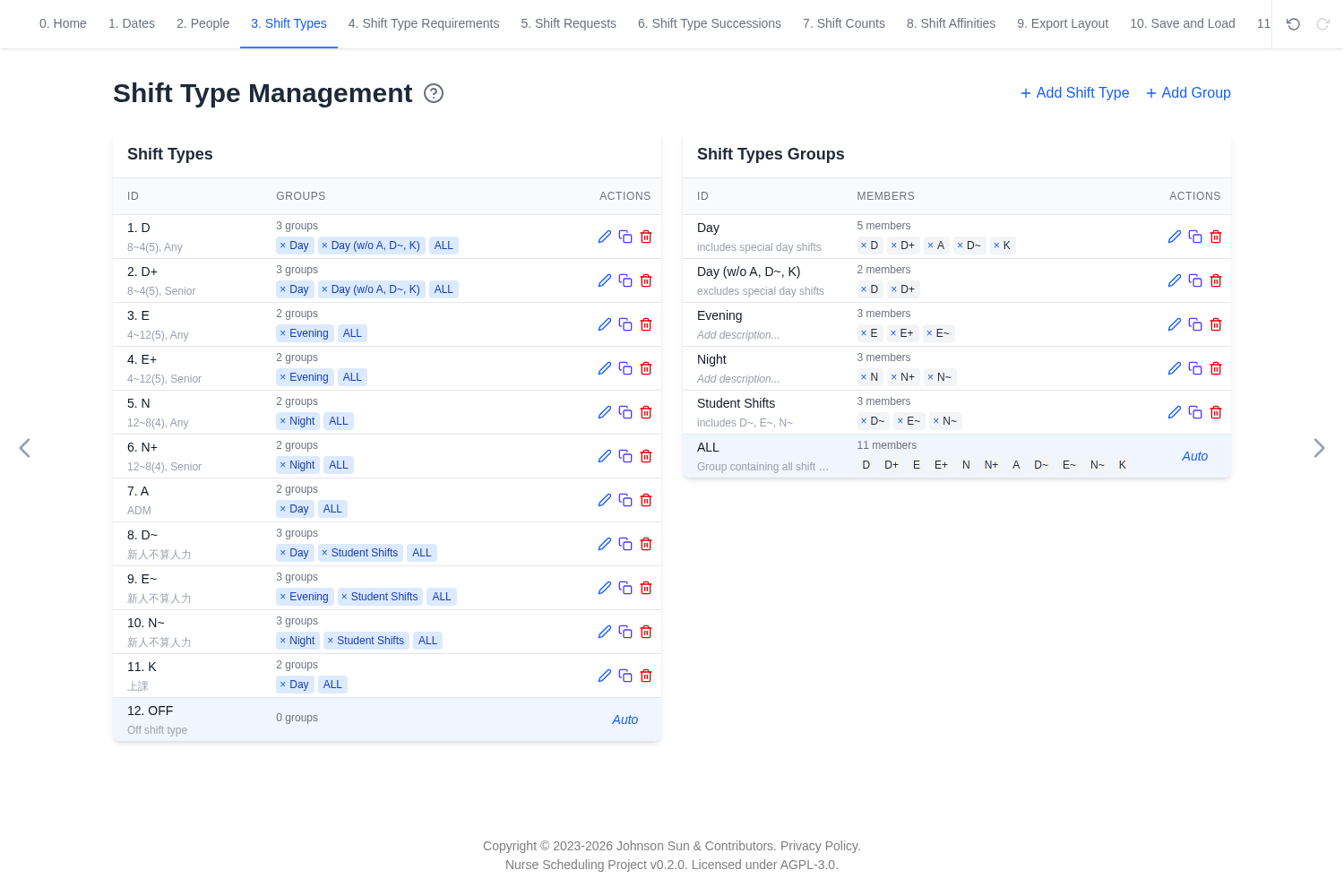
Create the 11 shift types listed under shiftTypes.items in reference.yaml,
in that order: D, D+, E, E+, N, N+, A, D~, E~, N~, and K.
Open Shift Types, select Add Shift Type, enter the ID and description,
and select Add. Repeat for each shift type.
The automatic OFF shift type and ALL group are always present and cannot be
edited or deleted.
The ward usually speaks in four broad categories: Day, Evening, Night, and administrative work. Separate solver shift types let the same time of day have different qualification and staffing rules. For example, one total Day count would not guarantee senior coverage, and counting a student as an ordinary Day nurse would overstate available staffing.
The + shifts have separate senior-nurse coverage requirements in step 6.
The ordinary D, E, and N slots can be filled by qualified non-student
nurses, including seniors. The ~ shifts are learning assignments. Students
do not count toward ordinary staffing. K means 上課 (required class
attendance), with K recalling the Mandarin initial sound ㄎ of 課. It is
not ward staffing.
Other wards may also need D-, E-, and N- for easier or junior-only slots,
or A+, A-, and A* for different administrative roles or qualifications. Those types are
not present in this example. A suffix has no automatic meaning to the solver:
the staffing requirement and qualified-people group give it meaning.
Confirm each type's meaning and specify its qualified people in the staffing
requirements.
Ask what a ward means by “D” or “Day” before mapping its language to YAML.
It might mean the whole daytime category, the ordinary D slot, the senior
D+ slot, or Day as a nurse's monthly primary shift. The same ambiguity can apply to
Evening and Night. If the distinction changes staffing, requests, or rest
rules, confirm it with the user rather than guessing from the symbol.
Then create the 5 shift-type groups listed under shiftTypes.groups in
reference.yaml, in that order: Day, Day (w/o A, D~, K), Evening,
Night, and Student Shifts. Select Add Group, enter the ID and
description, select the member shift types, and select Add.
Define each shift-type group according to the policy it represents:
Day contains A, D, D+, D~, and K, while
Day (w/o A, D~, K) contains only D and D+.
Day,Evening, andNightcollect assignments with similar working hours. Administrative shiftA, classK, and learning shiftD~are included inDaywhen defining rest policies with shift-type successions. For example, the forbiddenEvening → Daysuccession also forbidsEvening → K, since class attendance occupies the following daytime.Day (w/o A, D~, K)identifies only ordinary and senior Day staffing. It excludes administrative work, classes, and student learning. This distinction allows a rule to select onlyDandD+. The current example intentionally uses the broaderDaygroup in its requests and has no rule selecting this narrower group.Student ShiftscollectsD~,E~, andN~so one request can forbid all three learning shifts for non-student nurses.
For example, D~ belongs to both Day and Student Shifts. The Day
group includes it in succession rules, while Student Shifts restricts it
to students through shift requests.
6. Add the staffing requirements
Constraint priorities. This guide uses the following terms:
- A hard constraint must be satisfied by every feasible schedule. For
example, a required staffing minimum is a hard constraint. A shift request
with weight
-infforbids that assignment. - A soft constraint changes the objective score through a finite weight. Violating it is allowed. The optimizer selects assignments that maximize the combined score while satisfying all hard constraints.
- A near-hard constraint is a soft constraint with a large penalty for violations. It represents a requirement the ward expects to satisfy, with violations allowed when necessary. There is no fixed numerical threshold: its priority depends on the other weights and the number of scored events.
Positive finite weights reward preferred assignments or patterns. Negative finite weights penalize discouraged assignments or patterns. Their values specify relative priorities selected through scheduling experience and adjusted after reviewing optimization results. The Shift Requests, Shift Type Requirements, and Shift Type Successions pages explain how each rule is scored.
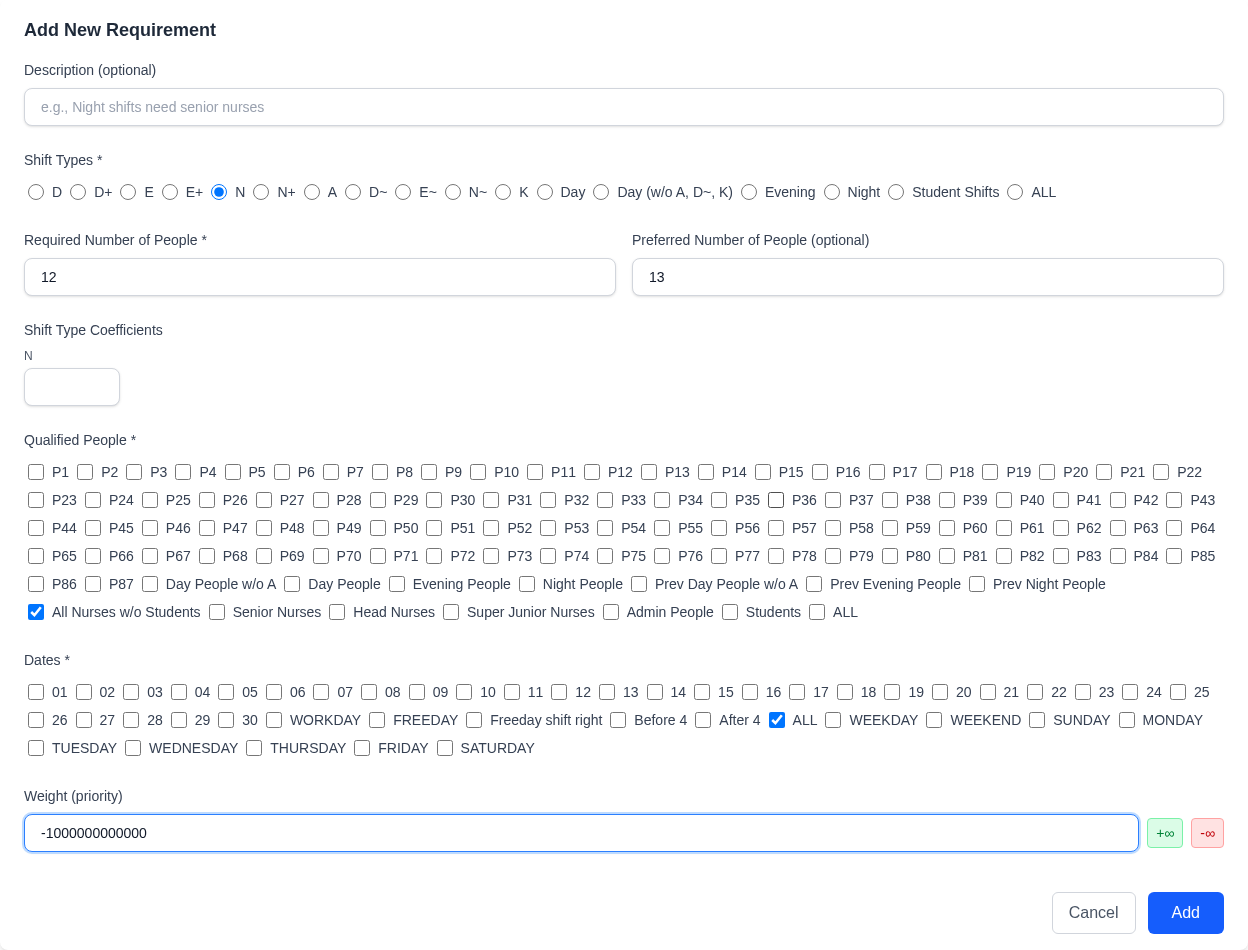
Open Shift Type Requirements and select Add Requirement for each row
below, in this order. Select one Shift Types option, enter Required Number
of People, select one Qualified People group and one Dates group,
then select Add. Set Preferred Number of People and Weight for the
four rows that show them. The Weight input appears only when preferred and
required counts differ. Leave Description blank. The senior and admin
rows use the app's default weight of -1. Leave Shift Type Coefficients
blank for all eight rows.
| Shift type | Required | Preferred | Qualified people | Dates | Weight |
|---|---|---|---|---|---|
N+ |
3 | — | Senior Nurses |
ALL |
default -1 |
N |
12 | 13 | All Nurses w/o Students |
ALL |
-1t |
E+ |
3 | — | Senior Nurses |
ALL |
default -1 |
E |
12 | 13 | All Nurses w/o Students |
ALL |
-1t |
D+ |
3 | — | Senior Nurses |
ALL |
default -1 |
D |
12 | 13 | All Nurses w/o Students |
FREEDAY |
-1t |
D |
13 | 14 | All Nurses w/o Students |
WORKDAY |
-1t |
A |
1 | — | Admin People |
FREEDAY |
default -1 |
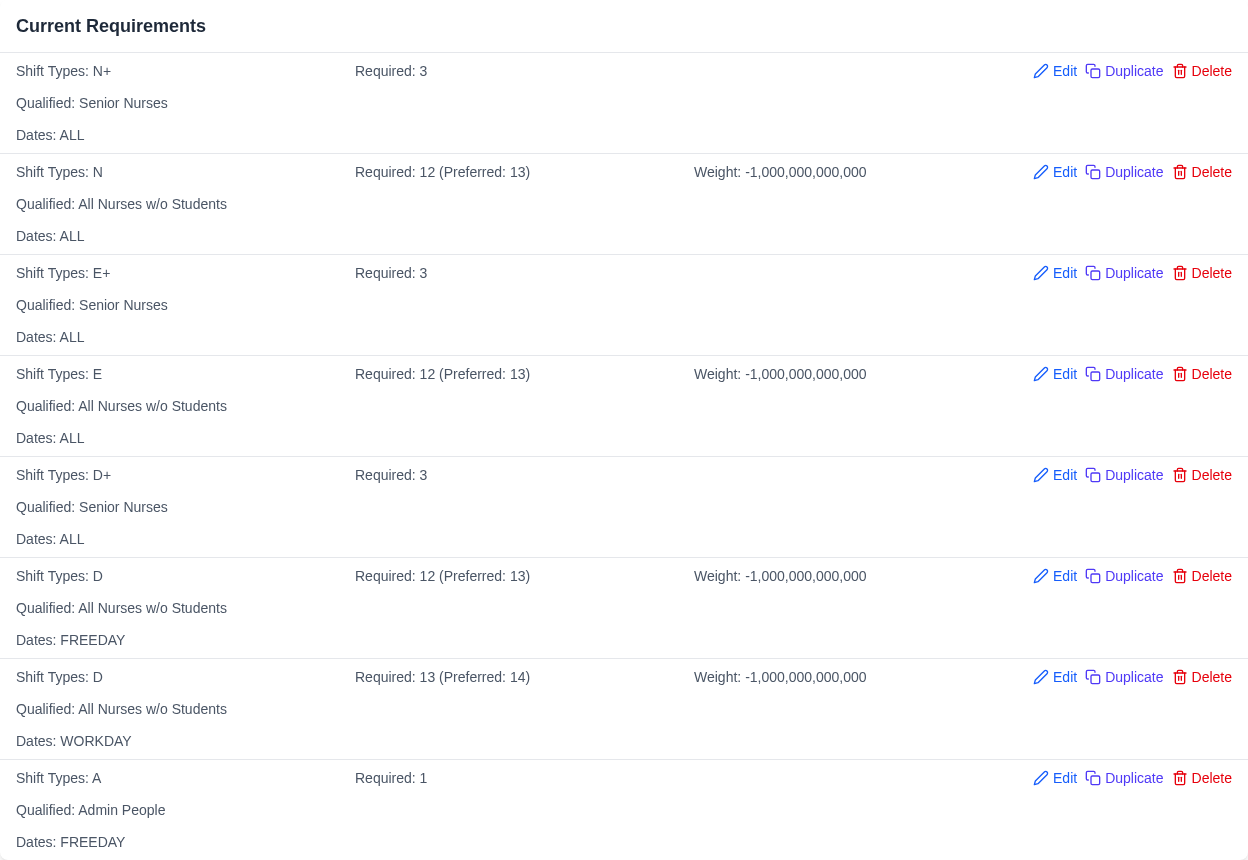
The same values appear under requirements in reference.yaml.
Take these counts from the ward's workbook or head nurse. Each requirement answers two questions: how many people are needed, and who can provide that coverage. Specify ordinary and senior slots separately so their qualification requirements remain visible. Avoid setting shift-type requirements on shift-type groups when individual shift types can express the staffing need. Group requirements can accidentally count unintended shifts or overlap with individual requirements.
For near-hard staffing, set Preferred Number of People to the desired
count, Required Number of People one lower, and Weight to -1t.
With this guide's 11b and 11m request tiers, -1t is the largest
individual finite penalty. In practice, it usually keeps preferred staffing
even alongside many 11b requests. A shortfall remains possible. If none is
acceptable, set Required equal to Preferred. That makes the count hard and
may make an understaffed month infeasible with no completed schedule, which makes debugging much more difficult.
The D, E, and N requirements count non-student nurses. D has separate
workday and freeday counts because workload differs. The + requirements
count senior nurses, and the freeday A requirement uses Admin People.
These headcounts come from the ward, not a universal formula. The + slots are separate from the
ordinary slots: N+ requiring three seniors is in addition to the N general nurses slot.
The GUI warns that 140 date/shift-type pairs have no fixed staffing
requirement: A on WORKDAY, plus D~, E~, N~, and K on ALL. These
assignments have no fixed daily count. Check whether the shift requests and
other rules sufficiently restrict who receives them and on which dates.
Add staffing requirements if the ward needs a daily count.

7. Add previous-shift history
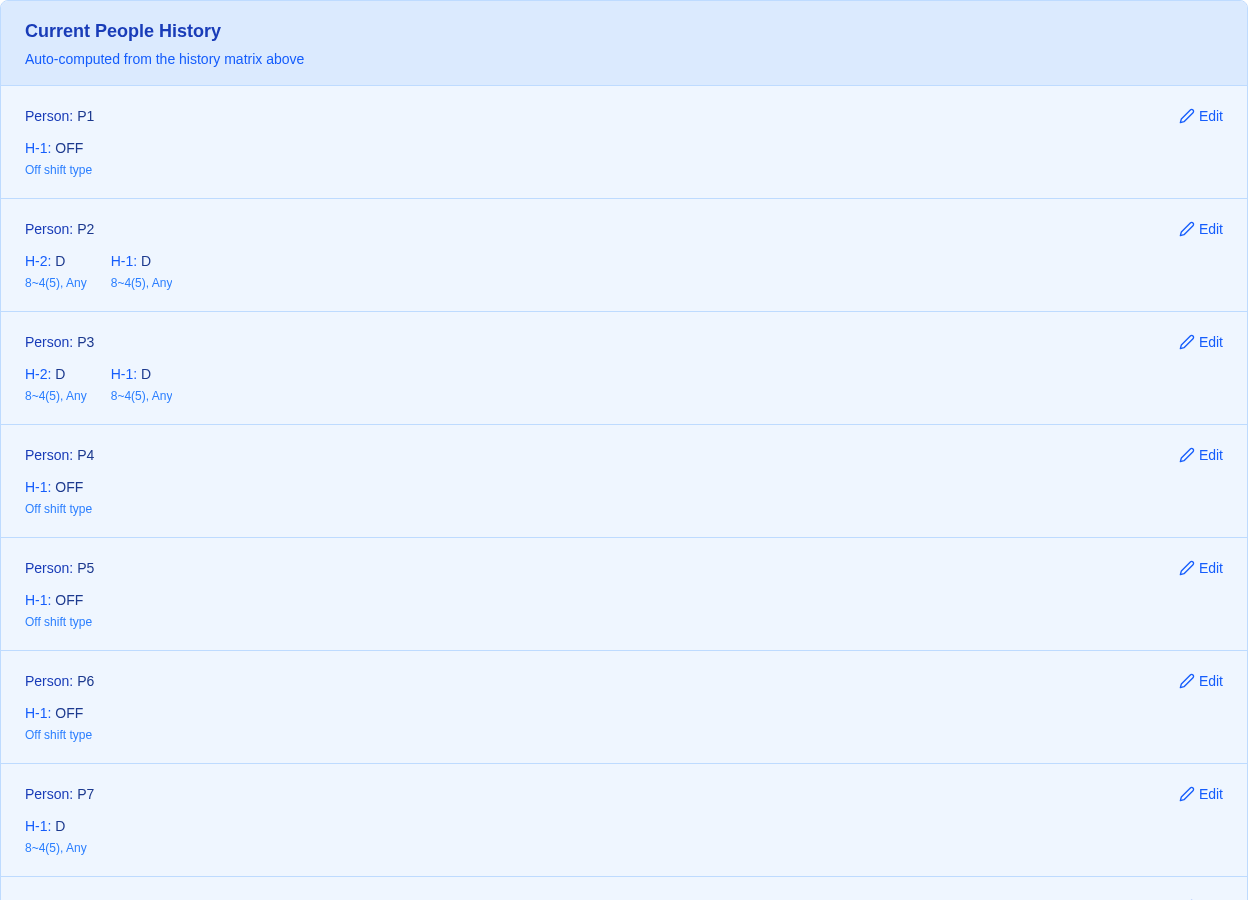
- Open Shift Requests and select Quick Add Preference.
- Select Upload People History (shorthand) and choose
people-history.csv. Wait for the confirmation that 87 history entries were processed before continuing. Keep Quick Add Preference open for the next step.
Each row is person,shift,repetition. The history fills the H-1–H-6
columns with shifts before November 1. Succession rules use these entries
to check sequences that begin in the previous month. Without this history, the solver cannot check a forbidden Evening → Night
transition or a six-day work run that starts in October and ends in November. H-1 is October 31, the day immediately before this schedule.
8. Import the concrete requests
The two CSVs hold every request for a specific person on a specific date. A CSV upload gives every non-empty cell the selected weight, so import each strength tier separately. Blank cells have no effect.
- Open Shift Requests and select Quick Add Preference if the quick-add panel is closed. Selecting the button again closes it.
- Set Weight to
11b, select Upload Shift Requests, and chooseshift-requests-strong.csv. Wait for the confirmation that 408 shift preferences were processed. - Set Weight to
11m, then select Upload Shift Requests and chooseshift-requests-moderate.csv. Wait for the confirmation that 90 shift preferences were processed. For a quick visual check,P5on date22should showOFF (+11m).
Each row is one person. The columns line up with the displayed dates. Blank cells are ignored, so the two uploads do not conflict.
The Weight input accepts these shorthands. The downloaded YAML stores their numeric values.
| Input | Value or effect |
|---|---|
k, m, b, t |
Thousand, million, billion, trillion. A number can precede each suffix, as in -1b = -1,000,000,000. |
11m |
11,000,000, the strong soft request tier used by shift-requests-moderate.csv. |
11b |
11,000,000,000, the near-hard request tier used by shift-requests-strong.csv. |
inf, infinity, ∞, or the +∞ button |
Positive infinity, a mandatory shift request. See Shift Requests for how positive infinity applies to shift groups. |
-inf, -infinity, -∞, or the -∞ button |
Negative infinity, forbidding the selected assignment. |
Nurse requests matter, but not every request has the same urgency. 11m is
the strong soft tier. 11b is the lowest near-hard tier in this convention:
when near-hard requests conflict with staffing requirements, the selected
weights prioritize staffing over individual requests. A finite weight still permits that
tradeoff.
These request weights have been reused successfully across wards. Their
relative priority matters more than their exact digits, but the 11 prefix
deliberately makes request weights distinctive and easy to find or retune
together. Confirm their priority against the rest of a new ward's rules.
This example assumes the ward balanced the number of 11b requests per
person before using the app, often through discussion while preparing the
uncompleted monthly schedule workbook. The optimizer does not equalize those
requests: someone with
two and someone with ten receive the same weight per request. If that
preparation is missing or the tier is unclear, start with 11m, inspect how many requests are satisfied for each person, and only then promote selected requests to 11b.
9. Add the group and person requests
Create the 35 shift requests listed under shiftRequests in reference.yaml
with Quick Add Preference. These are the 27 group-level and 8
person-level requests that the CSVs do not cover.
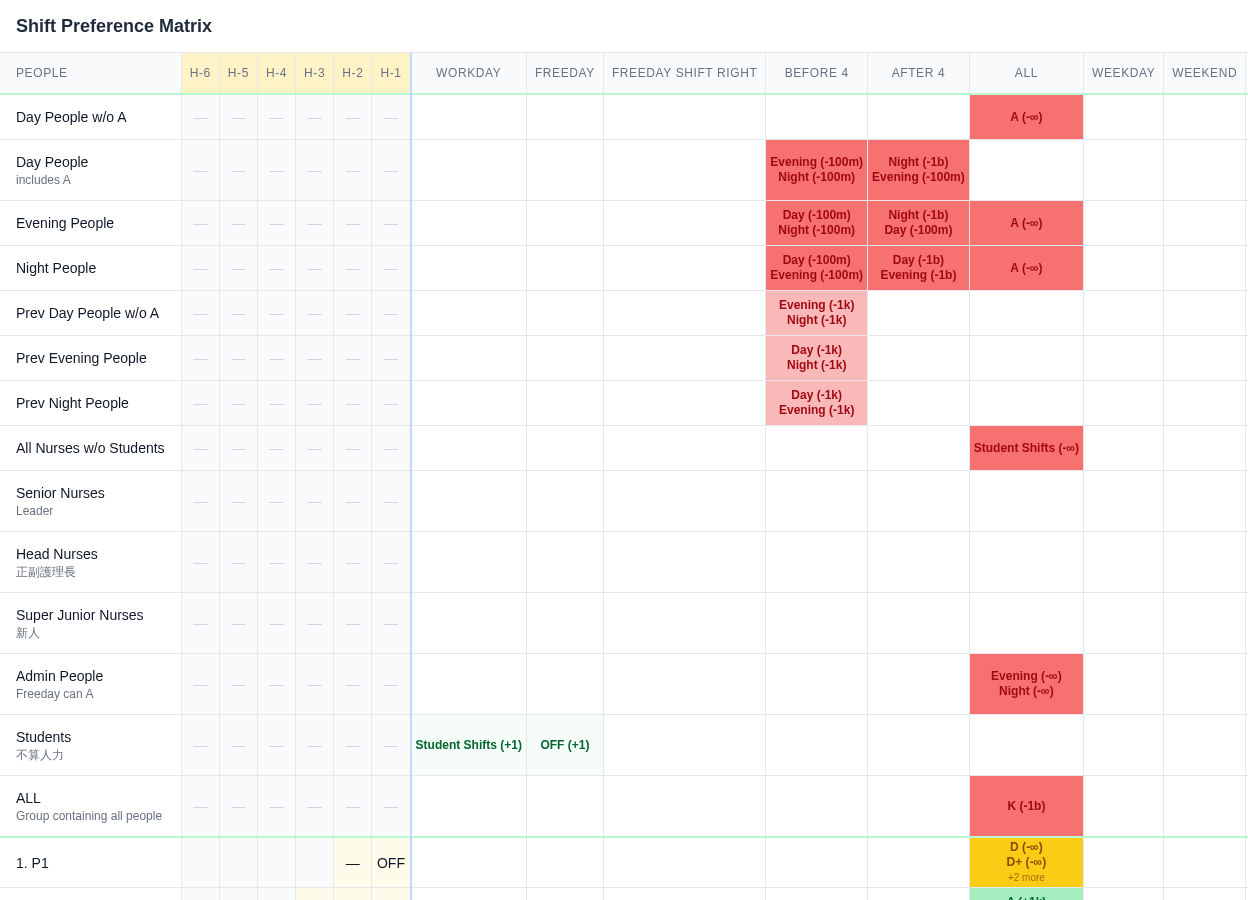
Ignoring the history columns, people groups appear above individual people, and date groups appear to the left of individual dates. Prefer the second and fourth quadrants:
- Second quadrant, upper left (people group × date group): Put reusable rules here. They continue to apply when the roster changes if group IDs retain their meanings and membership is updated. Most rules in this section use this quadrant.
- First quadrant, upper right (people group × individual date): Keep this empty when possible. A group rule tied to a specific date must be reconsidered each month.
- Third quadrant, lower left (individual person × date group): Keep
this nearly empty. This example uses it to show descending
AorOFFpriorities for the head nurseP1, deputy head nurseP2, and most senior nurse outside those rolesP3, with weights10k,1k, and100. For a cleaner reusable configuration, define a group for each role and put these rules in the second quadrant. When a person is deleted while adapting this configuration, rules selecting that person are removed too. They must then be added again for the replacement staff and are easy to overlook. Prefer leaving this quadrant empty. - Fourth quadrant, lower right (individual person × individual date): Put that month's personal requests here. When moving to another month or ward, clear this quadrant and import the new requests. The CSV imports in step 8 populate it.
Keep Quick Add Preference open. For each entry under shiftRequests in
reference.yaml, select only its one shift type, enter its weight, and click
the cell where its people row meets its date column. The shift-type selection
and weight stay set after each click, so change them before the next entry.
For example, select A, set -inf, then click the Day People w/o A row in
the ALL column. Use the -∞ or +∞ buttons for infinite weights.
Red cells show discouraged or forbidden work. If you click a cell by mistake,
set the weight to 0, choose that shift, and click the cell again to clear the
request.
Each set of entries serves a different purpose. The notation
(dates, people, shift types) lists the selectors in that order. Each
position may name an individual item or a group. For example,
(ALL, Day People w/o A, A) selects all dates, that people group, and
administrative shift A. Use reference.yaml for the exact selector
and weight of each entry:
(ALL, Day People w/o A, A)has weight-inf. This keeps non-administrative Day nurses out of the administrative slot.(ALL, Evening People, A)and(ALL, Night People, A)also have weight-inf.- For the current monthly primary-shift groups, discourage shifts
outside each group's primary shift:
Day Peopleworking Evening or Night,Evening Peopleworking Day or Night, andNight Peopleworking Day or Evening. Add a separate request for each group, other shift, and date group. All six combinations have weight-100monBefore 4. OnAfter 4,Day Peopleworking Evening andEvening Peopleworking Day keep-100m. The other four combinations, in which Day or Evening people work Night or Night people work Day or Evening, receive-1b. Day and Evening work hours are easier to exchange when necessary. Night work requires a different sleep schedule, so changing between Night and daytime or evening work is more disruptive. Some wards also pay a bonus only when a nurse works at least a set number of Evening or Night shifts in a month. Assigning other shifts can leave that nurse below the threshold. These penalties favor the monthly primary shift and allow other assignments only when staffing or individual requests make them necessary. When a change is unavoidable, the lower penalties favorDay Peopleworking Evening orEvening Peopleworking Day.
- Each
Prev Day People w/o A,Prev Evening People, andPrev Night Peoplegroup has two-1krequests against shift types outside the previous monthly primary shift onBefore 4. These discourage assignments outside the previous month's primary shift during November 1–3. Their finite weights allow a change when needed. (ALL, All Nurses w/o Students, Student Shifts)has weight-inf. This keeps learning shifts for students, whose work does not fill ordinary staffing.(ALL, Admin People, Evening)and(ALL, Admin People, Night)have weight-inf. Administrative work is reserved for staff with sufficient seniority. When they are not assignedA, they serve as Day staff. These rules keep them available for those roles rather than assigning them Evening or Night work.(WORKDAY, Students, Student Shifts)and(FREEDAY, Students, OFF)each have weight1. They prefer learning on workdays andOFFon freedays. Their small positive weights do not require either assignment.(ALL, ALL, K)has weight-1b. The ward intendsKonly for people explicitly requested to attend class, butKhas no staffing minimum or built-in eligibility restriction. Without a default penalty, the optimizer could assignKto other people to improve unrelated scores. The-1bpenalty suppresses such assignments. An explicit person-date request forKin the strong CSV earns11b, which outweighs that penalty and allows the requested class assignment.- The ward sets separate requests for the head nurse
P1, deputy head nurseP2, and senior nurseP3.P1cannot workDorD+and should focus on administrative shiftA. AnAorOFFassignment earns10kforP1,1kforP2, and100forP3. These descending weights express the ward's priority for assigning these people to administrative work. Giving each person the same reward forOFFas forAavoids favoring extra work merely to collect theAreward. Other rules can then determine whether the person works or rests. Confirm their duties and weights before applying these requests in another ward.
The negative finite weights are priorities, not absolute bans. In particular,
the first-days transition remains lower-penalty than some later cross-team
assignments. These requests discourage working outside the monthly primary shift while
allowing other shifts when needed for staffing. The penalty differences between
shift types were selected through scheduling experience. Review the
combined effect of all groups containing a person before changing a weight.
The app sorts exported shift requests by people and shift-type order, then by
weight. Their order in downloaded YAML can differ from reference.yaml or the
bundled example even when every selector and weight matches.
10. Add the succession rules
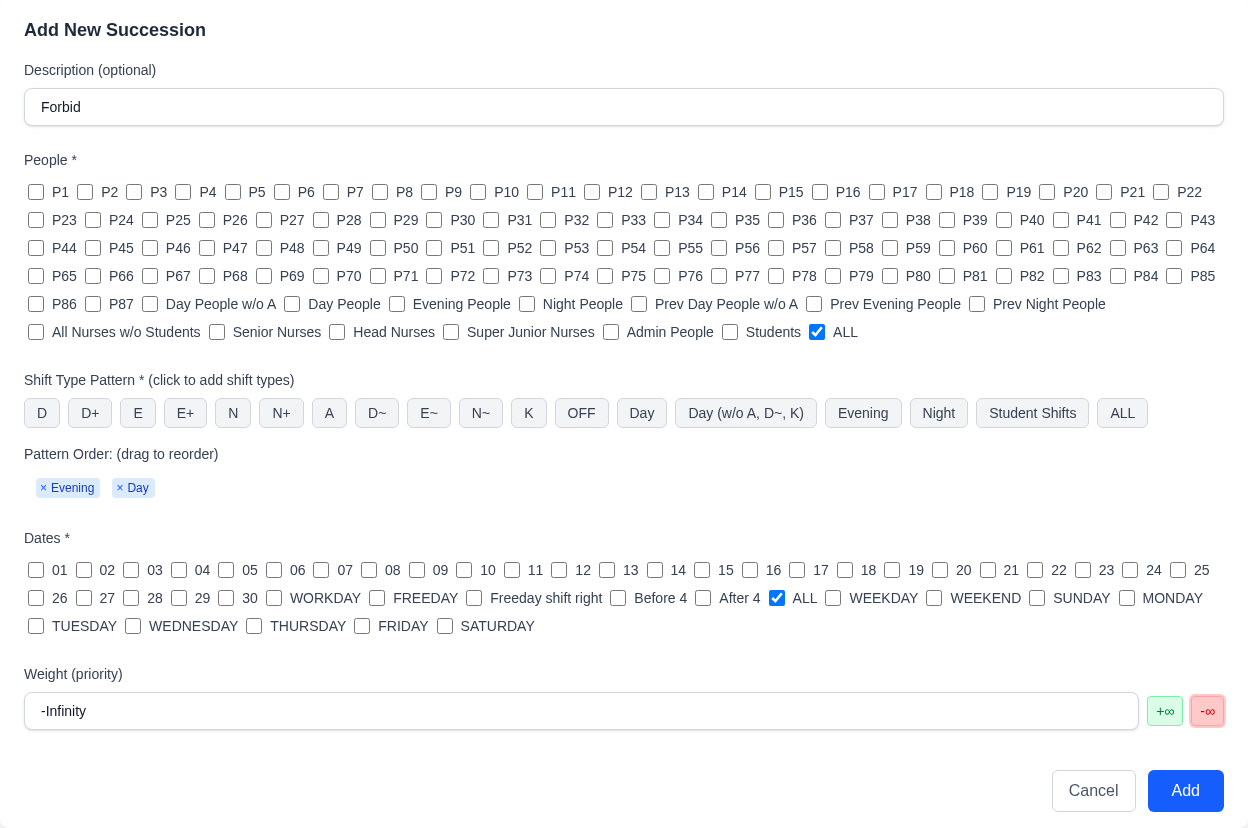
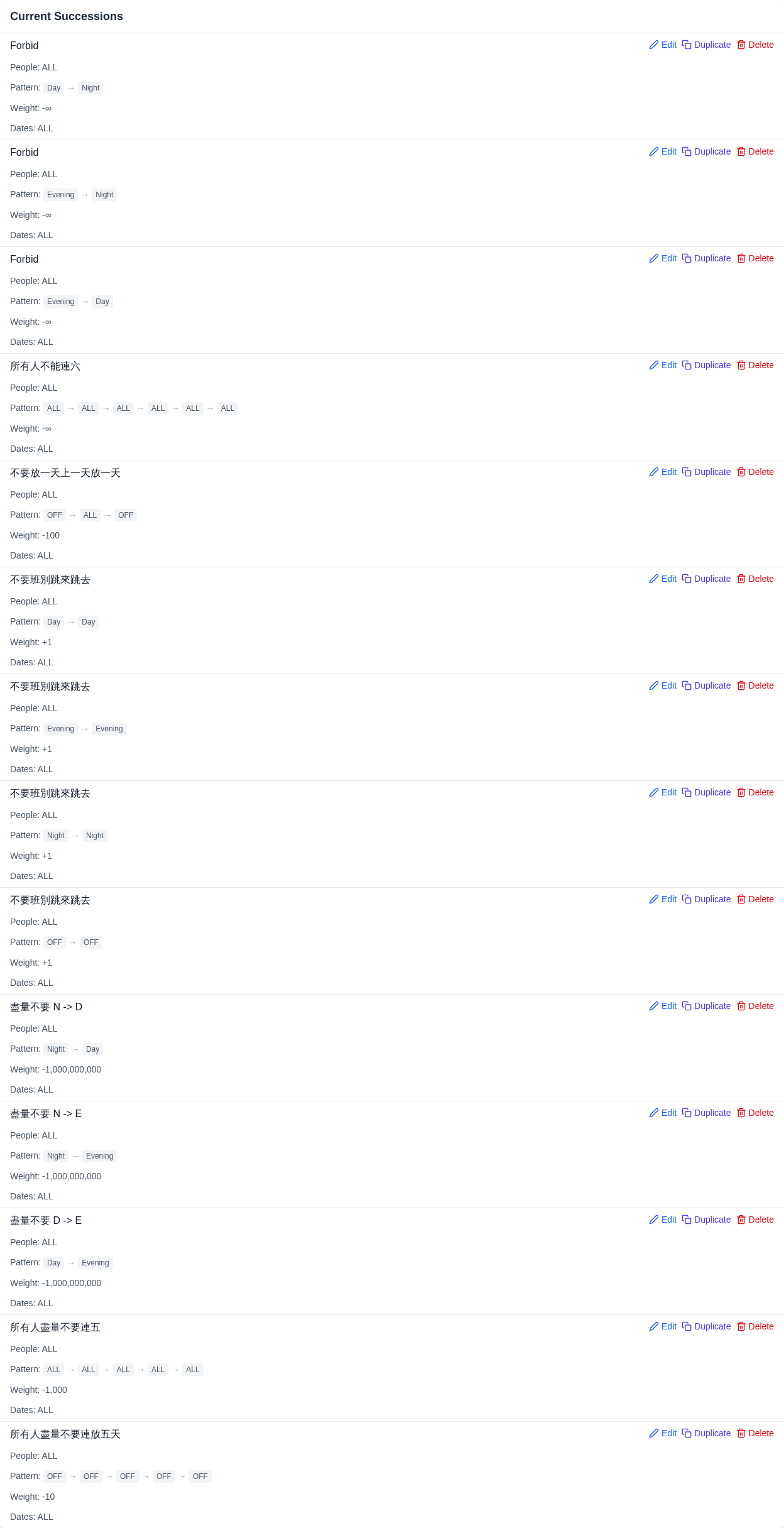
Create the 14 shift-type successions listed under successions in
reference.yaml, in that order. For each one, open Shift Type Successions
and select Add Succession. Enter its Description, check ALL under
People, and click the buttons under Shift Type Pattern in the listed
order. Repeated pattern members require repeated clicks. Check ALL under
Dates, enter the Weight, and select Add. Here ALL in a shift
pattern means any working shift. Previous-shift history from step 7 lets a
pattern crossing November 1 be checked.
In the following patterns, ALL means any working shift, not the
WORKDAY date group. An arrow separates consecutive dates.
Day → Night,Evening → Night,Evening → Day(-inf): Forbid transitions with insufficient rest. The ward treats these as physically unsafe.ALL → ALL → ALL → ALL → ALL → ALL(-inf): Forbid six consecutive working shifts.OFF → ALL → OFF(-100): Discourage an isolated working day between days off. The ward generally prefers work to occur in consecutive days.Day → Day,Evening → Evening,Night → Night,OFF → OFF(1each): Reward consecutive assignments in the same shift-type group or consecutive days off.Night → Day,Night → Evening,Day → Evening(-1beach): Strongly discourage these changes in sleeping hours. They should occur only when staffing or other requirements make them necessary. When changing a nurse's sleeping hours, scheduleOFFbetween the two working shifts if staffing permits, rather than assigning them on consecutive days.ALL → ALL → ALL → ALL → ALL(-1k): Five consecutive working days can be tiring. This ward discourages them, while forbidding a six-day run. Other wards may set a different limit.OFF → OFF → OFF → OFF → OFF(-10): Avoid assigning a long block of days off without a request. It can leave more consecutive working days elsewhere in the month. A nurse who wants such leave can request those dates explicitly.
The strength of a sleep-cycle rule depends on the ward's actual shift times and rest policy. For example, Evening work ending at midnight followed by Night work starting at midnight can mean roughly 16 consecutive working hours. That insufficient-rest case warrants a prohibition. A Night-to-Day change may be technically possible yet force an abrupt reversal of sleep and waking hours, with severe fatigue resembling jet lag. The example strongly penalizes it, and some wards may treat it as a near-hard constraint.
The remaining succession rules discourage long work runs and isolated days off, or reward consecutive days in the same shift-type group. Their exact weights are empirical and may vary across wards.
11. Add the workload counts
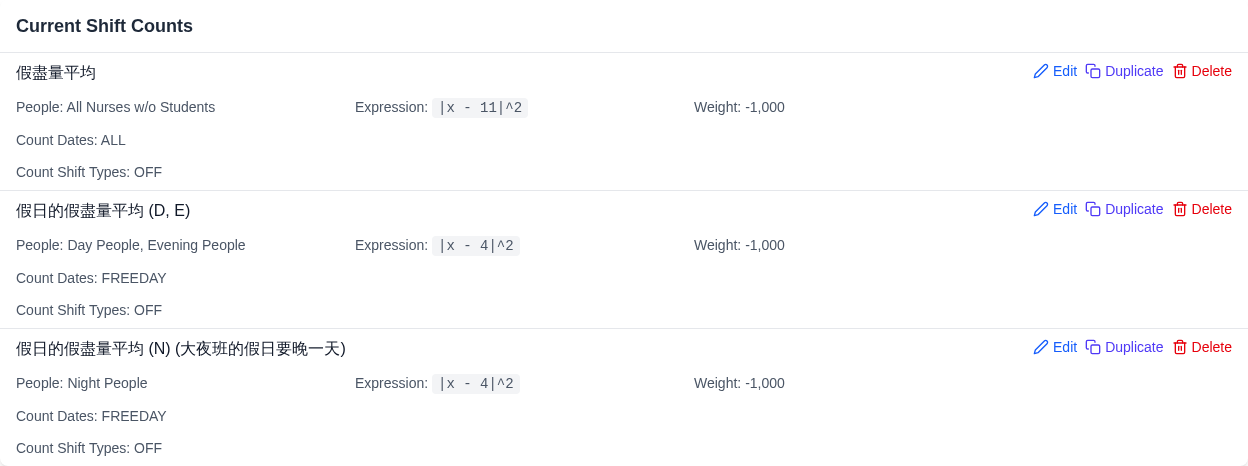
Create the 3 shift counts listed under shiftCounts in reference.yaml, in
that order. Open Shift Counts and select Add Shift Count for each.
Enter its Description, check its groups under People, select its
Count Dates group, and check OFF under Count Shift Types. Keep
Expression at |x - T|^2, enter its Target Value, set Weight to
-1k, and select Add. Leave Count Shift Type Coefficients blank:
All Nurses w/o StudentsonALL, target11.Day PeopleandEvening PeopleonFREEDAY, target4.Night PeopleonFREEDAY, target4. This rule remains separate because an advanced version could countFreeday shift rightinstead. This example usesFREEDAYfor all three groups. Its retained description mentions shifting Night freedays, but that refinement is not active in this rule.
Without fairness rules, staffing and request scores can concentrate work or
desirable days off on particular people. Two nurses can have the same monthly
OFF count but different numbers of weekend days off. The first rule balances total days off. The freeday rules
balance days off on dates in FREEDAY.
Each rule scores every selected person's own count. The squared expression
penalizes a larger gap from the target more strongly, promoting a fairer
distribution of days off. 11 and 4 are empirical starting points, not
fixed labor-policy constants. Adapt them to the month, staffing levels, and
the ward's seniority policy.
After an optimization run, inspect the average and distribution of total
OFF days and freeday OFF days. If either average is unexpectedly high or
low, adjust its target by one day, for example from 11 to 10 or from 4
to 5, then rerun. Staffing and requests determine which averages are
feasible.
Senior shifts may carry more responsibility or workload. Some wards therefore
want seniors to receive at least as much OFF or freeday rest as juniors, for
example ensuring no senior gets fewer than the junior with the most. That is
a separate fairness policy between groups. This example only balances counts
within the selected groups. If the ward wants seniors to receive more rest, split the count rules by
seniority and give head or senior nurses a higher OFF target than other
nurses. Run the optimizer and adjust these targets until the resulting
schedule meets the ward's policy.
12. Validate the result
- Open Save and Load and select Download.
- Check that it has 87 people, 5 ward date groups, 13 ward people groups,
11 added shift types, 5 shift-type groups, and 183 preferences: the default
one-shift-per-day rule, 8 staffing requirements, 157 shift requests, 14
successions, and 3 shift counts. In the requests, check both
Before 4andAfter 4, plus the11band11mCSV tiers. The downloaded YAML stores these weights as11,000,000,000and11,000,000. -
Compare the values in the downloaded YAML with the bundled example. The
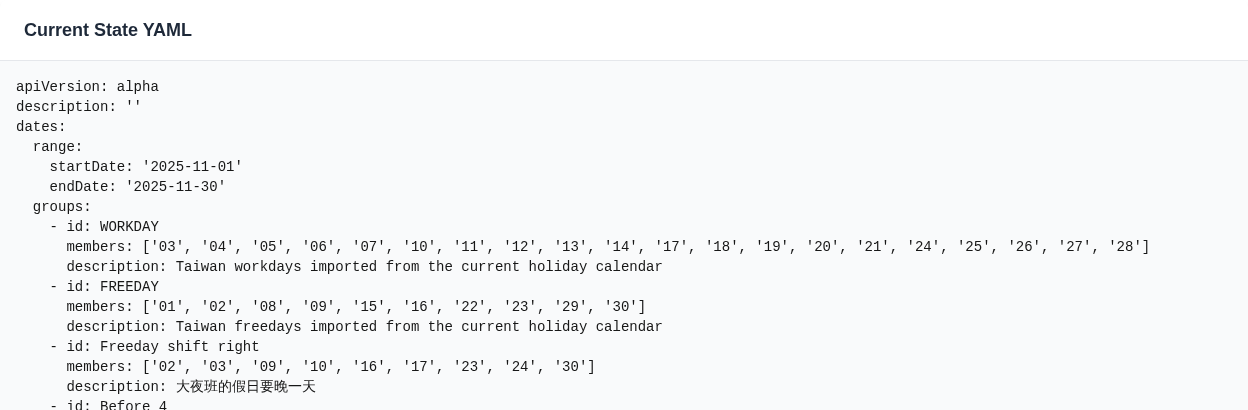
apiVersion,description,dates,people, andshiftTypessections should match. All 183 preferences should have the same values, although requests and fields can appear in a different order.appVersionrecords the running app version and can also differ.Contributors can run the semantic comparison from
web-frontend/after saving the download asartifacts/exported-schedule.yaml:
13. Optimize and review the schedule
Before optimizing, have the person preparing the schedule review the roster and
group memberships, the dates in WORKDAY and FREEDAY, previous-shift history, staffing levels,
and every -inf rule. Also confirm which finite preferences may be traded off
when the schedule is crowded. Review every staffing coverage warning.
- Open Optimize and Export. Leave Backend at
Autoor choose an online compatible server, then select Check all and wait for Server: Online. Check the available solver and its timeout range. - For a quick feasibility check, enter
300in Solver Timeout and select Optimize and Download. For this example, a backend showing claimed performance around40can usually find a feasible schedule within that run. For a more reliable schedule that usually satisfies all near-hard shift requests, set the timeout to900seconds and run again. See Optimize and Export for server credentials, timeout settings, and download options. - Review the downloaded workbook with the person preparing the schedule. Check
daily ordinary and senior staffing, unmet requests, and each person's total and freeday
OFFcounts. In the default output, a blank assignment cell meansOFF, and[X]marks an unmet individual person-date request. Open the Notes worksheet to see each marked cell and the unmet request's weight. - A feasible schedule should normally be found for this example. If none is
found, check hard staffing counts, qualifications, mandatory requests,
and forbidden successions for conflicts. A common beginner error is to
use
infor-inffor a near-hard request. Use a large finite weight instead. If a feasible schedule has unacceptable trade-offs, revise its finite weights or count targets and run again.
OPTIMAL means the solver proved the best score for the configured model.
FEASIBLE means it found a schedule without proving that score best. For a
real ward, the schedule's usefulness matters more than this status.
The ward staff who decide the schedule may have priorities that are not
written in the source workbook. The requirements,
requests, and weights entered in the app are the objective given to the
optimizer. They must express those criteria faithfully. For example, if the
ward wants senior nurses to receive more days off but no rule represents
that priority, an OPTIMAL result can still give them too little rest. A
poor result may need more solve time, but a persistent mismatch calls for
revising the specified rules. This guide explains why the example's rules were chosen, so readers can
express those ward priorities in the app.
For this 87-person case, a backend with claimed performance around 40
usually makes little further
improvement after 15–30 minutes, even without an OPTIMAL proof. Review the
schedule with the ward and stop when all near-hard constraints are satisfied
and its staffing, requests, and distribution of work and rest are acceptable.
Hard constraints are satisfied by every feasible result. Conversion to the
ward's workbook is outside this tutorial.
Next steps
Build a new ward's schedule in stages: first confirm staffing, qualifications,
mandatory assignments, and rest constraints. Then add requests, team
preferences, and basic fairness. Run Optimize and
Export, inspect assignments and OFF counts with the
person preparing the schedule, and tune the finite weights or targets. Add
advanced rules, such as night-team shifted freedays, only after the basic
schedule works well.
For a recurring ward, update the dates, roster, history, and imports for the new period, then review every group and rule again.