Experimental AI Chat
Experimental
AI answers may be incorrect. Verify them against the schedule before use.
The hosted assistant is an API-key-gated beta. See AI Beta Access to request access.
This page answers questions about the schedule currently open in the browser. A question can include files of any type when Attach files is available. The assistant can inspect common text, image, PDF, and spreadsheet formats in its temporary workspace. The assistant can change the schedule. A valid change replaces the schedule in this browser when the response finishes. Undo in the tab bar or Ctrl+Z undoes it. The assistant can also run the optimizer and review its result.
Build from ward requirements
Use Build a Real Schedule for the app workflow and
the 87-person example. If file attachment is available and the source contains
no sensitive data, add the workbook with Attach files and ask the assistant
to inspect it. Have it list the
people, dates, staffing levels, requests, history, and any unclear
notation before changing the schedule. A 1, a color, or a short shift
code can mean different things in different wards. Confirm those meanings and
group memberships with the person preparing the schedule.
Work in stages. First establish staffing, qualifications, required assignments,
and rest rules. Then add nurse requests, monthly shift-team preferences, and
fairness targets. After each change, review its differences in the chat and undo
any change you do not want. Run the optimizer, inspect coverage and the distribution of days off, and
ask for empirical adjustments. Values such as 11 OFF days or a particular
weight are examples to tune, not defaults for every ward.
The assistant can inspect an attached workbook and change the schedule, but it cannot click through the app or run its upload controls for you. Use the People and Shift Requests pages for bulk imports. Follow the data and limitations guidance before attaching any ward records.
Ask the assistant to optimize
Ask the assistant to optimize the current schedule and describe the result or improve a specific outcome. The assistant starts the run in the background, so you can continue chatting while it solves.
- Click Finish now in the optimizer status box, or ask the assistant to finish now, to request the best solution currently available. The button shows Finishing… while the optimizer prepares its output. Cancel optimizer cancels the job instead.
- The status box shows elapsed running time. Queued jobs show waiting time.
- Foreground commands such as
bashappear in the answer activity. The status indicator above the message box is reserved for optimizer runs. - When the run ends, the chat records its elapsed time, who requested early completion, its termination reason, outcome, score, solver and timeout, backend URL and version, and any claimed performance. It offers the result workbook as a download. The assistant receives the score and a copy of the workbook in its workspace. It can inspect relevant spreadsheet sections to answer questions about the result, including in later chat turns while the result remains available.
- The assistant wakes automatically and replies in a new turn.
- The assistant may change the YAML and run the optimizer again. The changed YAML replaces the schedule in the browser when that response finishes.
The optimizer runs for up to 300 seconds (five minutes) by default. Ask the assistant for a different timeout when needed. A deployment may set another default. One chat may start 50 optimizer runs by default.
Optimizer completion reports explain when an automatic request audit is unavailable. Custom export text outside bracketed annotations can prevent the audit.
Before submission to the optimizer, the AI service applies the same basic anonymization as Optimize and Export: it replaces person IDs and removes description fields. It restores person IDs in the downloaded workbook. Dates, shifts, groups, and rules can still reveal sensitive information.
Each run uses a server-side schedule snapshot. Editing or undoing the browser schedule does not interrupt the assistant. Send passes the current browser schedule to the assistant for your next question.
When you build a new roster, the assistant asks about missing rest and fairness rules together before creating it. You can decline forbidden transitions, work streak limits or balancing. It uses answers you already gave.
Review an applied change
Ask for a change, such as renaming a person or adding a shift request. The assistant edits a temporary copy of the schedule, and the app checks each edit.
- Ask for the change in the usual way.
- Each step that changes the temporary schedule shows Schedule check passed or Schedule check failed. It contains the check result that the assistant received. After a failed check, the assistant repairs the problem.
- When the response finishes, the last valid schedule replaces the schedule in this browser. Applied to your schedule lists every difference. If you changed the browser schedule during the response, a notice explains that the assistant replaced those changes.
- The change is one step in the edit history, so Undo or Ctrl+Z reverts the whole change. The assistant learns about the undo when you send your next question.
A change replaces edits that you made elsewhere in the app while the assistant was answering. Use Ctrl+Z to restore them.
Reconnect or retry
If the model provider has a temporary failure, the assistant retries the current model request automatically. A notice in the chat shows each retry and its delay. Retries keep completed tool results and files. They do not rerun completed commands or optimizer submissions. Partial text remains visible with a note that it is omitted from future model context. The retry starts a fresh answer to the same request.
If the provider still fails after five attempts by default, or after two minutes, the response fails with the provider error. Earlier answers stay in the conversation, and the AI sees that this response did not finish. To continue, send a new message, such as "Continue". Files from the failed response are not kept.
The assistant continues working if the browser loses its connection or the phone sleeps. The chat reconnects automatically and recovers the complete saved answer. Reloading the same tab also resumes an unfinished request. Stop requests cancellation on the server and waits for its outcome. An answer that completed before Stop remains a completed answer.
You can switch to another app page while the assistant answers. Returning to chat resumes the conversation. The app still warns before leaving with unsent text or selected files.
A failed turn keeps its original question and provisional output visible. To continue, send a new message. If the files of a question did not finish uploading, the question was not sent. Attach the files again and send the question. Reconnecting an accepted request keeps the same message ID, so it does not send the question to the model twice. Incomplete responses are omitted from future model context. Completed tool exchanges remain, with a separate note when the temporary workspace was discarded.
Recovery lasts until the session expires, normally after 30 days of inactivity. Hosted deployments use PostgreSQL to recover messages after a backend restart. A restart interrupts active responses, but the saved question, partial output, uploaded source files, generated ZIPs, and optimizer files remain available. Removing an upload or ZIP hides it from active use but keeps it in the session archive. Removed files still count toward the chat's stored file limit, 1 GB by default. When a chat reaches it, start a new chat to save more files. All archived files expire with the chat. Without PostgreSQL, chats and files remain in memory only. Keep your original files.
See what the assistant did
Choose Model before the first message. It stays fixed for the conversation after the AI service accepts a message. A rejected message does not fix it. You can change Reasoning while an answer streams. The active turn keeps its original setting, including tool calls and steering. The new reasoning setting applies to later turns and optimizer reviews. Reloading restores the choice.
Context X% used and Tokens: X / N below the message box describe the same current LLM context. X includes system instructions, tools, conversation messages, and streamed output. N is the model context limit reported by the provider. The percentage is X divided by N.
The app prefixes estimates with ~ while streaming and after summarization. Provider-reported token usage replaces estimates when available. If the model limit is unknown, the token count remains visible and the percentage shows unavailable. Hover over either value for its description. Est. cost is separate from context usage.
Select Compact context below the message box while the assistant is idle to summarize older conversation context. This action does not generate an answer. The chat records You requested context compaction. No compaction needed means that no older conversation context remains to summarize, or the context was just summarized. Recent messages stay unchanged after the summary when older conversation context is compacted. Use Stop to cancel it. Failed or cancelled compaction keeps the original context.
When the conversation is summarized, expand Conversation summary in the right-aligned User · Conversation summary bubble to read the text supplied to the assistant. The app generates this summary using the user role. Its details explain which recent messages remain unchanged. Compaction status and other app notices that are not supplied to the assistant appear in separate centered bubbles. Assistant output and tool activity stay on the left. A discarded summary stays visible and is marked as omitted from future context. Earlier messages remain in the visible transcript even when the summary replaces them in model context.
Small grey rows under an answer record how it was produced. They stay collapsed until you select one.
- Reasoning shows the model's own thinking for that step.
- The
bashtool shows the command the assistant ran and its bounded output. The assistant may read task-sized schedule references from the temporary sandbox when it needs schema guidance. - schedule edit shows the changed lines after a Bash command changes the temporary schedule. Red lines were removed and green lines were added. This is a preview. The schedule changes when the response finishes.
- A row marked
failedmeans that step changed nothing. This is the usual reason an answer arrives without a schedule change. - The
optimizertool shows whether the assistant started, checked, or asked the current optimization to finish.
Long output is revealed a portion at a time with Show more. Clear Show reasoning or Show tool activity near the top of the page to hide either kind. Show turn costs controls each reply’s cost summary and call details. Show models controls each reply’s model and reasoning setting. These choices are remembered on this browser. Exports always include these details regardless of the display settings. The conversation cost appears as Est. cost beside context usage on one line that wraps when needed.
If a turn fails, read the error beside its response. Chat exports retain that error with any partial answer. A provider error can include an HTTP status and an error ID to share when reporting the problem. A schedule validation error explains the invalid value or field. Failed validation discards that turn's edits and keeps your current schedule.
Real scenario example
For the anonymized 87-person ward example, load
large-ward-with-87-people-2025-11.yaml, then open Experimental AI. Confirm
that the snapshot shows 87 people and 30 dates before asking a question.
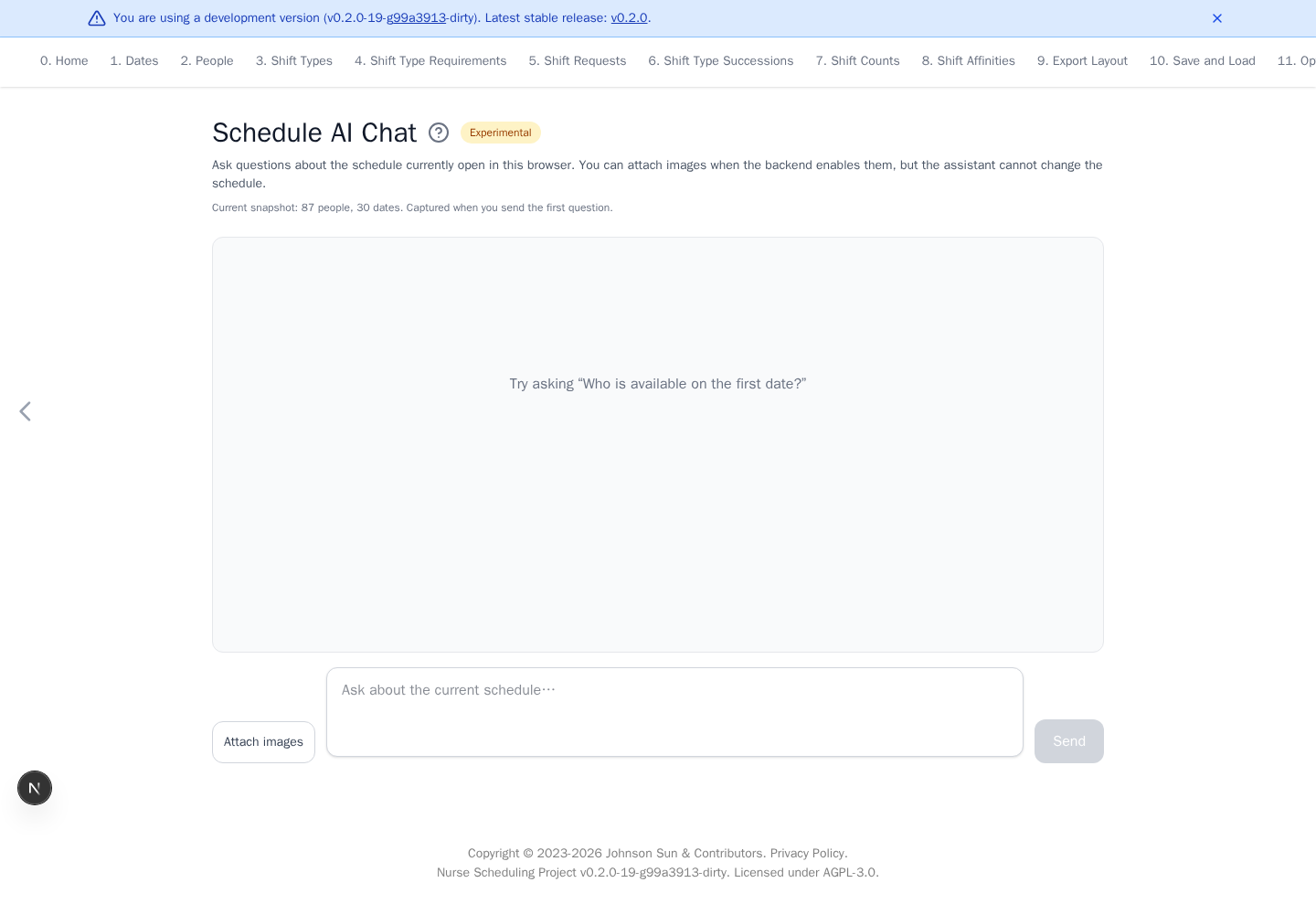
The blue development-version banner appears only in non-release builds.
Ask about a schedule
- Finish editing or load the intended schedule.
- Open Experimental AI.
- Confirm the displayed people and date counts.
- If Attach files is available, optionally select files and confirm the displayed names. Remove an incorrect file with its × button.
- Enter a question and select Send. Press Enter to send or Shift+Enter for a new line. Where browser speech recognition is available, select the microphone to dictate the question. Pasting formatted text converts bold, italics, and links to Markdown in the message box. Tables and preformatted blocks use plain text to preserve cell separators and indentation. Pasting plain text preserves it as written.
- While the assistant is working, enter another message and select Queue to steer the same turn after its next tool call. This does not cancel work already in progress.
- Select Stop to interrupt a response in progress.
- If you scroll up in a long conversation, use the floating down-arrow button to return to the composer and latest message.
The animated Thinking indicator means the assistant is waiting for its first response text.
Assistant answers render Markdown, including headings, lists, links, code, and tables. Use the copy icon at the top-right of a code block to copy its contents. Raw HTML is ignored. Remote images written in an answer are not loaded. Uploaded file names and sizes appear beside their upload event in the chat and exports. The file panel shows the files currently retained by the session.
Use Export Chat to download one ZIP from the server. Extract it and open
chat.html for a styled transcript or chat.md for Markdown. Both link to files
under attachments/, including removed uploads, generated ZIPs, and optimizer
files. The ZIP also contains the current schedule.yaml, structured chat.json,
and manifest.json with file origins and hashes. Work still in progress is marked
as unfinished. Export is unavailable on servers without saved chat history.
When the assistant creates files for download, it puts them in one ZIP archive. Use Download files (ZIP) below its answer. The archive and its uncompressed contents are each limited to 50 MB by default. Downloads remain available while the chat session exists. Without PostgreSQL, the service memory limit also applies. A workspace path printed in an answer is not itself a download link. Use Remove ZIP after saving a file you no longer need in the chat. This frees active download storage and removes that ZIP's download button. With PostgreSQL, the archived ZIP remains until the chat expires.
Ask how to use the app
The assistant runs inside the existing Nurse Scheduling app and can explain which page and visible control to use for a task. For example, ask how to add a person, upload schedule YAML, configure a rule, or start optimization. It can guide you through those controls, but it cannot navigate, click, or upload for you. It can always start optimization itself. An unavailable optimizer API reports a tool error instead.
Files attached with Attach files remain available for later questions in the
same chat. The Uploaded files panel lists their names and sizes. Use Remove
when a file is no longer needed. Uploading a file with a name already in the list
keeps both files and adds a number to the new name, such as ward (1).csv.
The panel sits on the right on large screens and can be collapsed on smaller screens.
To replace the schedule currently open in the app directly, use Upload on
Save and Load.
The browser sends schedule data when you send a message. The first message creates a session with the current schedule YAML. Before later messages, the browser sends updated schedule data if it has changed. Editing schedule data or opening a saved chat does not send it to the AI service. A queued message that joins the active response uses that response's schedule data. Browser changes are sent when a new response starts.
Recent chats
Use Recent chats on the left to reopen a conversation. On a phone, expand the panel above the conversation. Selecting a chat keeps browser schedule data unchanged, including when earlier AI changes arrive during replay. The status above the message field shows whether browser schedule data matches the chat. Your next message sends current browser schedule data to that chat. New AI changes from that conversation can then update the browser schedule.
New chat preserves the previous chat in history. Recent chats are stored unencrypted on this device for seven days after their last activity. Viewing a chat does not extend this period. Remove forgets one chat, and Clear history forgets all chats on this device. The open conversation stays visible but will not be saved again after you forget it. These actions do not delete backend sessions, which normally expire after 30 days of inactivity.
Data and limitations
The complete schedule YAML is sent to the configured AI service and placed in the assistant's temporary workspace. Relevant schedule content reaches the model when the assistant inspects it. Uploaded source files stay with the chat for active use until removed or the session expires. Removed files stay in the archive until expiry. The service loads active files into each new workspace. File count and size limits apply to retained uploads. With PostgreSQL, the service loads saved file contents only when a response uses its workspace. Without PostgreSQL, their bytes share the service's session memory budget.
Each message uses a fresh temporary virtual machine, not your computer or a persistent desktop. The service loads the current schedule, relevant references, and retained uploads into it. Other files created during a response disappear when that workspace closes. Download generated output with Download files (ZIP). A chat message can mention a removed file even when it is no longer available. Upload that source again if a later question needs it. The assistant can inspect spreadsheet cells, including formulas and last-saved values, or extract text and render selected PDF pages. Rendered pages and any images the assistant extracts may be sent to the model when it reads them. File support still depends on the inspection tools installed in the workspace, and the assistant does not execute attachments.
AI chats and related data may be logged, retained, and processed for the development, evaluation, and improvement of this product and the AI provider's products. The AI model still receives the original schedule when it reads it. Chats and attachments are not anonymized, and the basic optimizer anonymization does not make a sensitive schedule safe to submit. Do not submit personal, confidential, regulated, or otherwise sensitive information. See the privacy policy for details.
Chat sessions use unguessable identifiers but do not have account authentication yet. Model answers may be incorrect, so verify them against the schedule.