People
Adding people is required. Groups are optional and can be added later when a rule needs to target several people together. Use recognizable IDs that do not expose unnecessary personal information.
Real scenario example
An anonymized ward contains 87 people named P1 through P87. Groups such as
Day People, Evening People, Night People, Senior Nurses, and Students
are reused in staffing and preference rules.
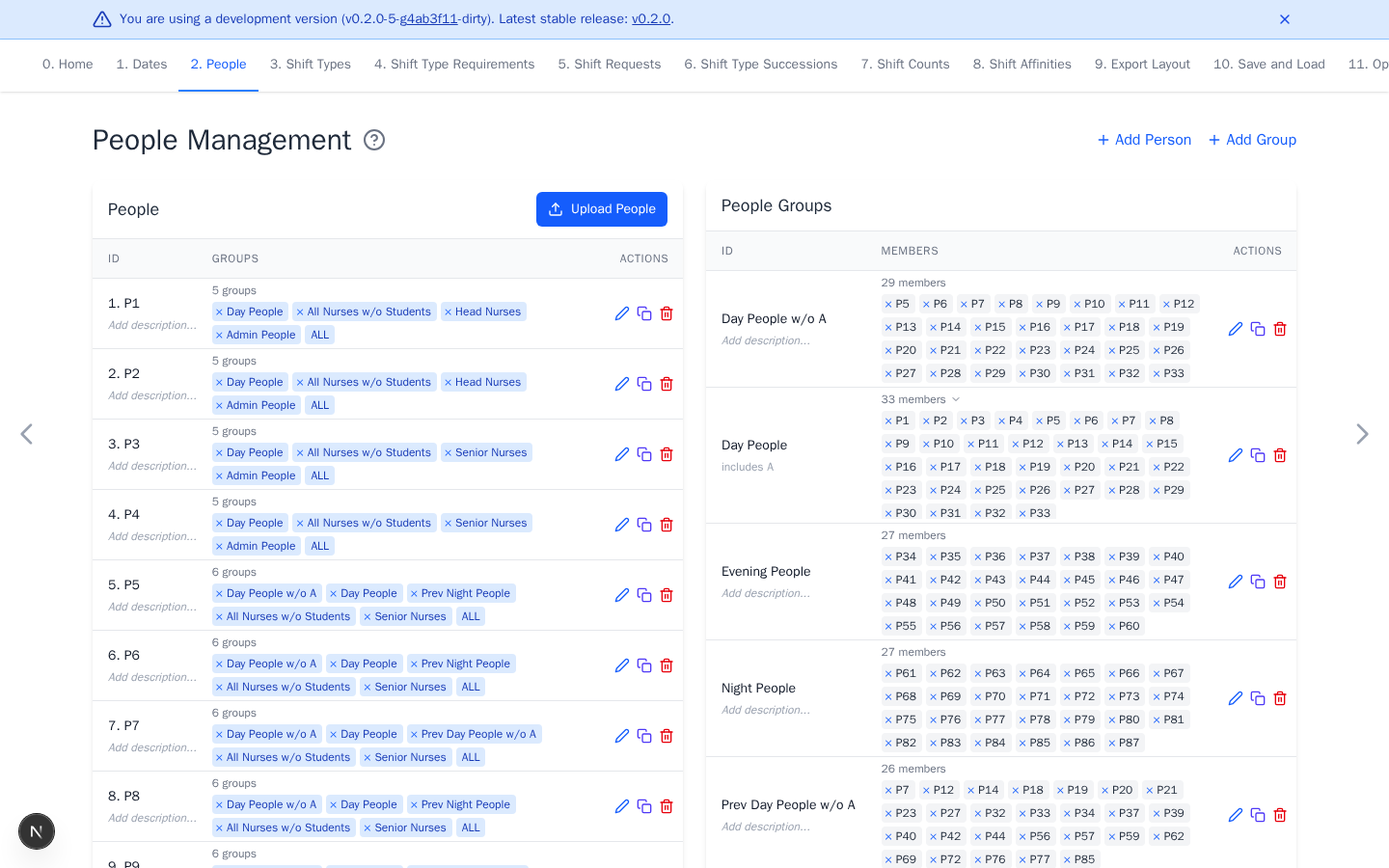
Add people
- Keep at least one person. Select Add Person to create one, or upload a roster.
- For a real schedule, upload the full roster, or double-click an ID to edit it and replace it with the actual one. Select Add Person for additional entries.
- Optional: add descriptions or drag rows to control workbook order.
Deleting or renaming a person updates references in preferences and export layout rules. Review affected rules after a change.
Add people groups
Groups make later qualification, request, count, and affinity rules easier to target. Skip groups when you are unsure. You can add them later, then select them in new or edited rules.
- Select Add Group.
- Enter a descriptive ID, such as
Senior NursesorStudents. - Select the member people, then select Add.
Groups may overlap. The automatic ALL group always contains every person.
Upload people
Upload a .txt or .csv file with one person ID per line. Both extensions use
the same newline parser. It trims each line, then ignores blank lines and lines
whose trimmed text begins with #. Commas and quotation marks are literal ID
characters. The upload does not parse CSV fields.
The upload accepts at most 1000 IDs after removing blank lines and comments, and rejects duplicate IDs. Listed existing IDs are reordered, while new IDs are added. Existing people omitted from the file are appended in their original order and are not deleted.
Optional previous-shift history is managed on Shift Requests. Continue with Shift Types.