Dates
Dates define the scheduling period. Setting the range is required. Custom date groups are optional and can be added later.
Real scenario example
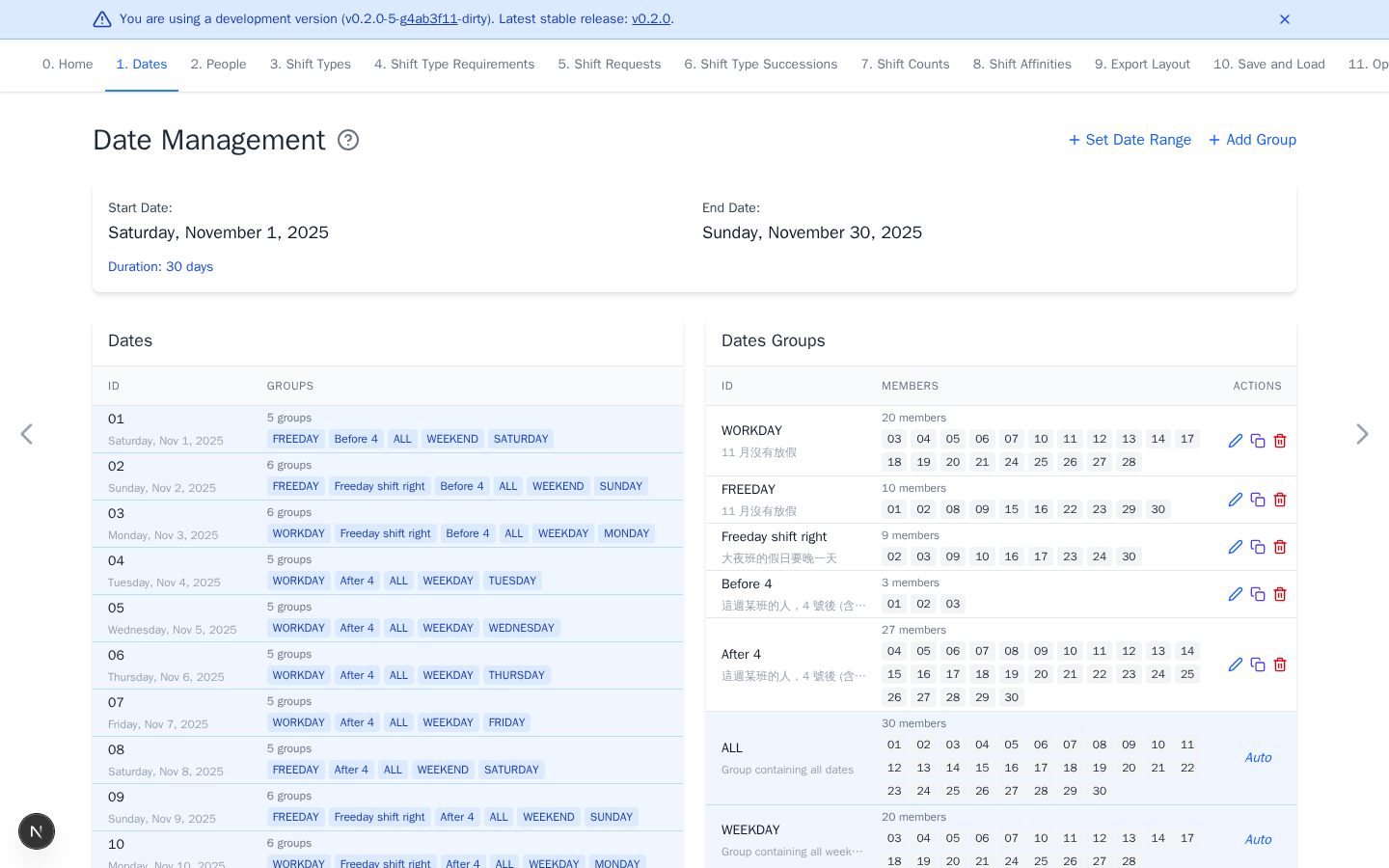
An anonymized ward schedules November 1 through 30, 2025. WORKDAY and
FREEDAY separate staffing days. Before 4 and After 4 let later rules use
different priorities around a team change on November 4. The first three days
allow a lower-penalty transition from the previous month's shift team.
Set the range
- Select Set Date Range.
- Enter the first and last date.
- Review the warnings. Holiday import is optional.
- Select Update.
The app creates one date item per day and automatic groups such as ALL,
WEEKDAY, WEEKEND, and weekday names.
Changing an established range
Rules lose references to dates that disappear. References can also be removed when the generated date ID format changes. Review every rule after changing the range.
Add date groups
Groups let later rules target several dates at once. Skip this step when the automatic groups cover your needs or you are unsure. You can add a group later, then select it in new or edited staffing and preference rules.
- Select Add Group.
- Enter a descriptive ID, such as
oddfor odd-numbered dates orAfter 4for dates on or after a cutoff. - Select the member dates. Drag across dates for repeated selection.
- Select Add.
Automatic groups cannot be renamed or deleted.
Import Taiwan calendar groups
Holiday import can create or replace editable WORKDAY and FREEDAY groups.
Use it only when these groups match the workplace calendar. It supports ranges
within 2023-01-01 through 2027-12-31. Follow the in-app warning for Labor
Day in 2023 and 2024, then adjust May 1 when needed.
The 87-person November example imports WORKDAY and FREEDAY from the
Taiwan calendar and creates its other editable date groups manually. Confirm
the resulting days against the ward's actual staffing calendar.
Continue with People.