Optimize and Export
This page sends the schedule data to a solver and downloads the optimized schedule as XLSX. Server selection and submission are required. Workbook formatting, anonymization, and timeout changes are optional.
Real scenario example
For the anonymized 87-person ward, confirm an approved backend is online, leave workbook formatting and anonymization enabled, and allow enough solve time for the larger model. The screenshot shows the configuration before a run starts.
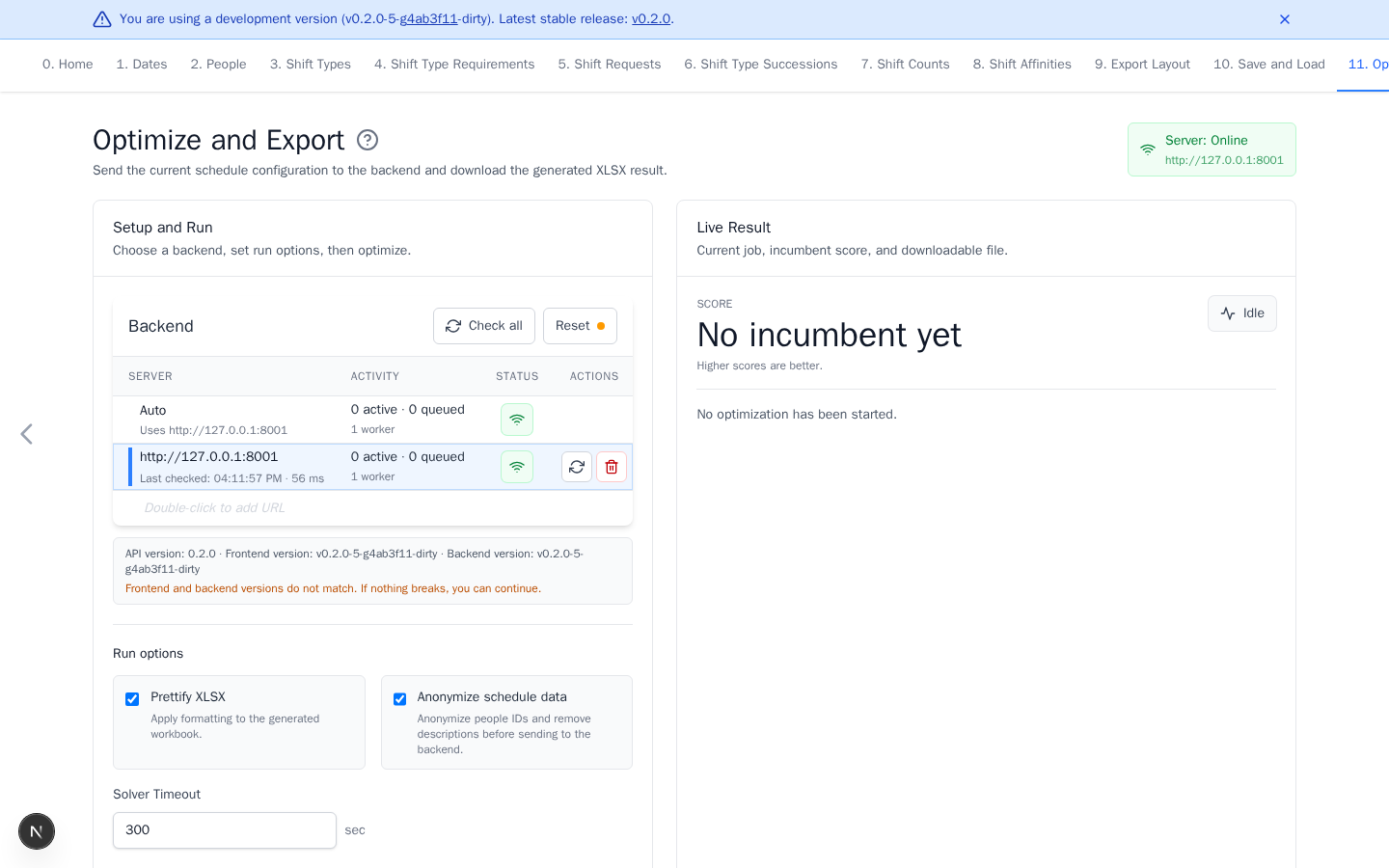
Before submitting
- Resolve undefined staffing coverage.
- Review duplicate coverage and remove unintended overlap.
- Check hard requests, successions, and counts for conflicts when those optional rules are used.
- Download a current YAML backup.
Run optimization
- Use Auto for the first online compatible backend, or select an approved server explicitly.
- If the server reports Credentials required, select Enter token, paste the token for that backend, and select Save. Enable Remember on this device to keep it for later visits, or leave it unchecked to use it only until the page is reloaded.
- Optional: keep Prettify XLSX enabled to apply Export Layout.
- Optional: review Anonymize schedule data. Keep it enabled unless there is an approved reason to send original people IDs.
- Optional: change the timeout when the default is unsuitable.
- Select Optimize and Download.
Anonymization applies to YAML sent to the server. Dates, groups, shifts, and rules may remain sensitive. The browser restores original people IDs in the downloaded workbook.
Stay on the page until download or cancellation. Get Results Now is
available only for a supported running solver. It asks the backend to complete
the job with its feasible incumbent and create the workbook. If no incumbent
is available, the job may fail with no_solution_found. Cancel is
asynchronous for a running job. The job first becomes cancelling, then
cancelled, without retaining a result or creating a workbook.
Interpret the result
OPTIMAL means the solver proved the best score for this model. A feasible
result can still be useful when the timeout ends first. The optimizer maximizes
the score, so higher is better. Compare scores only between runs of the same model.
Rows in the workbook are people. Date cells contain shift IDs, and a plain
blank means OFF. For individual-person to individual-date requests, the
default layout appends [shift] and adds [X] when the request is unmet.
Count summaries appear at the edges. Score and Status appear below the
schedule.
Fix common problems
| Problem | What to do |
|---|---|
| Optimize is disabled | Add dates, at least one person, and one shift. Wait for the server check. |
| Server is offline or incompatible | Select Check all, start the approved backend, or select another compatible server. |
| Server needs credentials | Select Enter token and paste the token for that backend. If it was rejected, select Change and enter the current token. |
| Undefined staffing | Add a requirement for every listed date and working shift. |
| Duplicate staffing | Remove unintended overlap. Intentional layered requirements all apply. |
| Result is infeasible | Check hard staffing, requests, successions, counts, and qualified people. Relax one rule at a time. |
| Timeout returns a feasible result | Review it as an unproven best result, or increase the timeout and retry. |
| Download fails | Use Download Again, allow site downloads, then retry. |